
Getting StartedSetup
Get up and running with the Cook iOS app in just a few minutes.
Download from the App Store
The Cook app is available for free on the App Store. Search for "Cook - Recipe Manager" or use the direct link below.
Requirements: iOS 15.0 or later. Compatible with iPhone and iPad.
First Launch
When you first open the app, you'll see a welcome screen introducing you to Cooklang - the simple recipe markup language that powers Cook.
Tap Continue to proceed to the sync setup.
Choosing a Sync Method
The app will ask you to choose how you want to sync your recipes. You have three options:
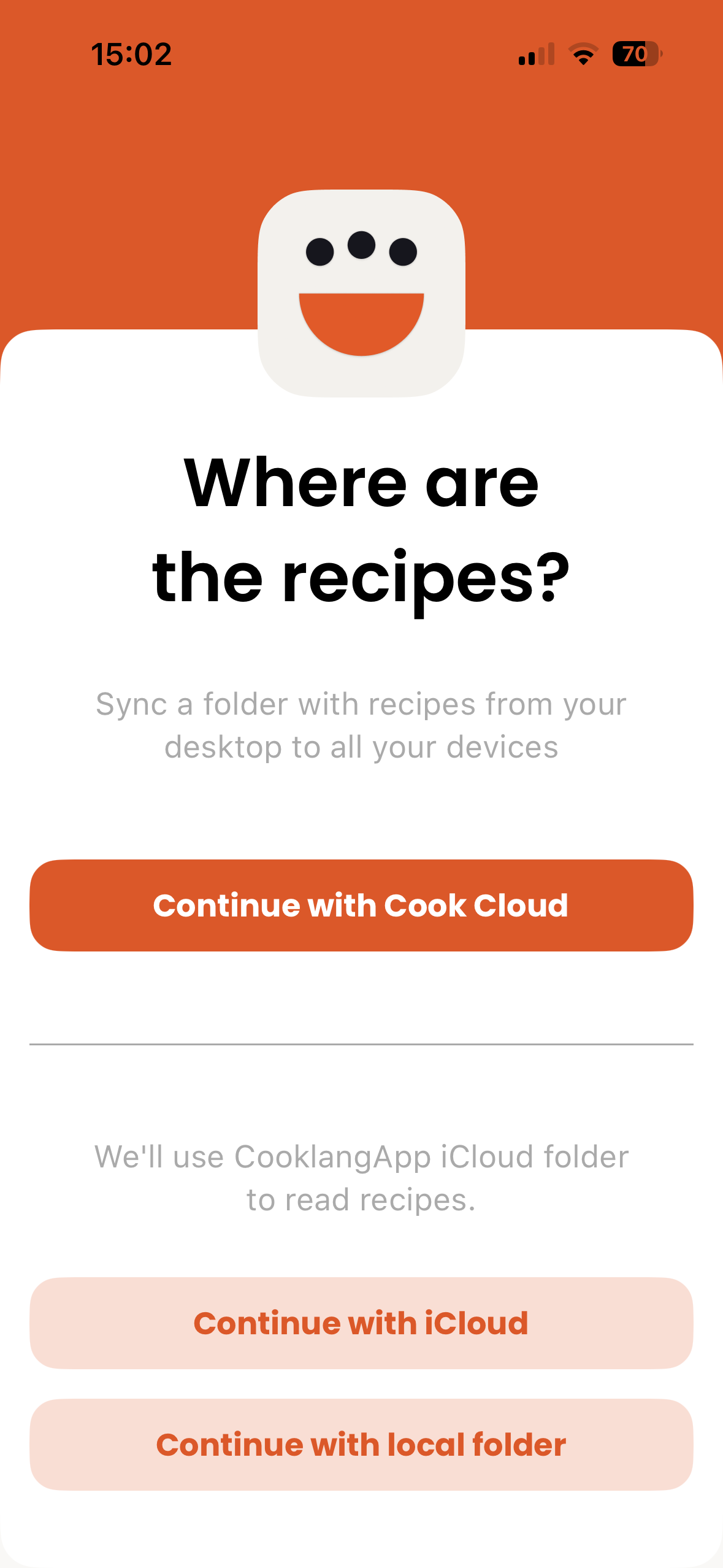
CookCloud (Recommended)
The easiest option. Create a free CookCloud account and your recipes sync automatically across all devices. Works on iOS, macOS, Windows, and Linux.
- Free account with generous storage
- Automatic sync across all platforms
- Works with the CookBot terminal app
- No configuration needed
iCloud Drive
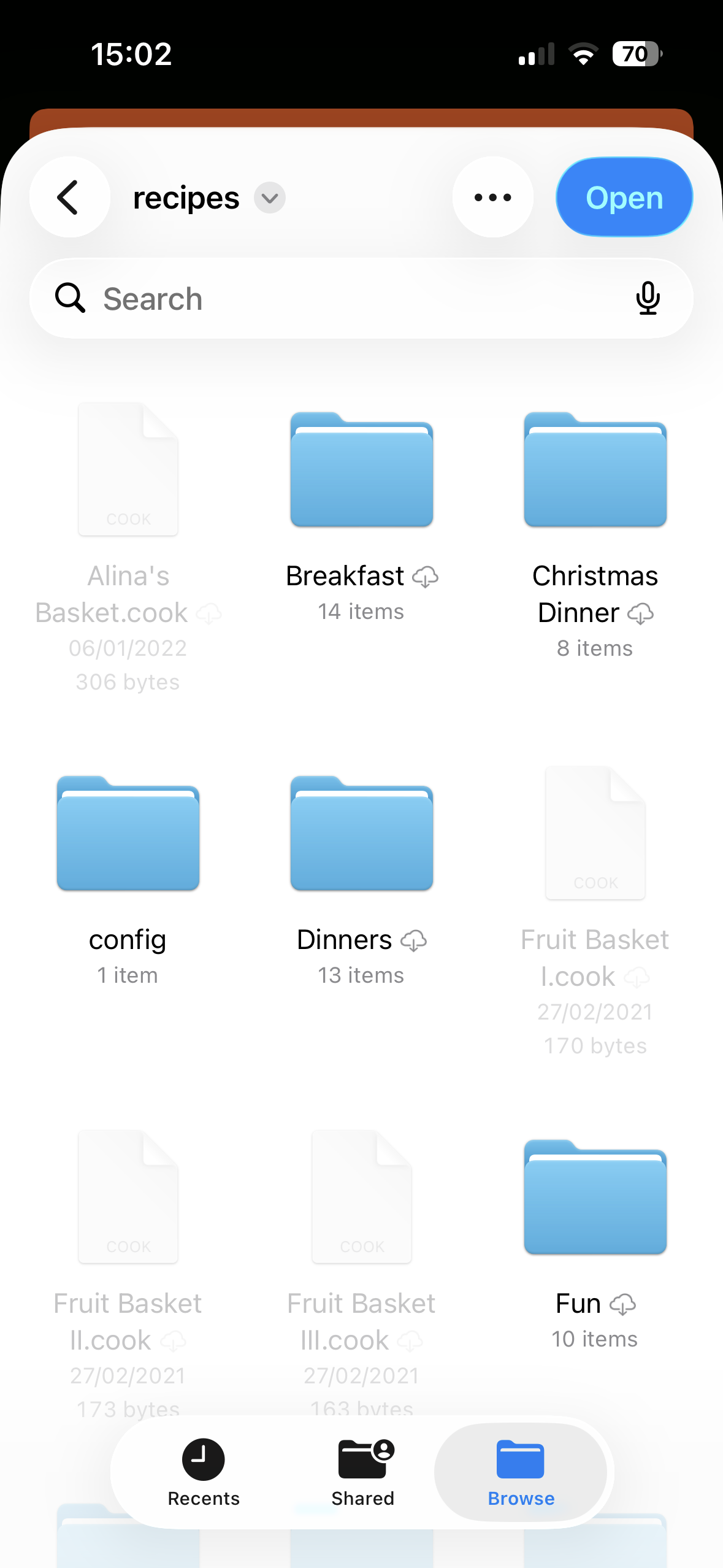
Store recipes in a folder in your iCloud Drive. Recipes sync across your Apple devices automatically.
- Uses your existing iCloud storage
- Syncs with Mac and other iOS devices
- Recipes accessible in Files app
- Requires iCloud account
Scenario: You have a Mac where you write recipes and want them on your iPhone for grocery shopping and cooking. Choose CookCloud for cross-platform sync, or iCloud if you're all-Apple.
On-Device Folder
Choose a local folder on your device. Recipes stay on your device only. Good for testing or manual file management.
Note: With On-Device Folder, recipes won't automatically sync to other devices. You'll need to manage files manually.
Signing In
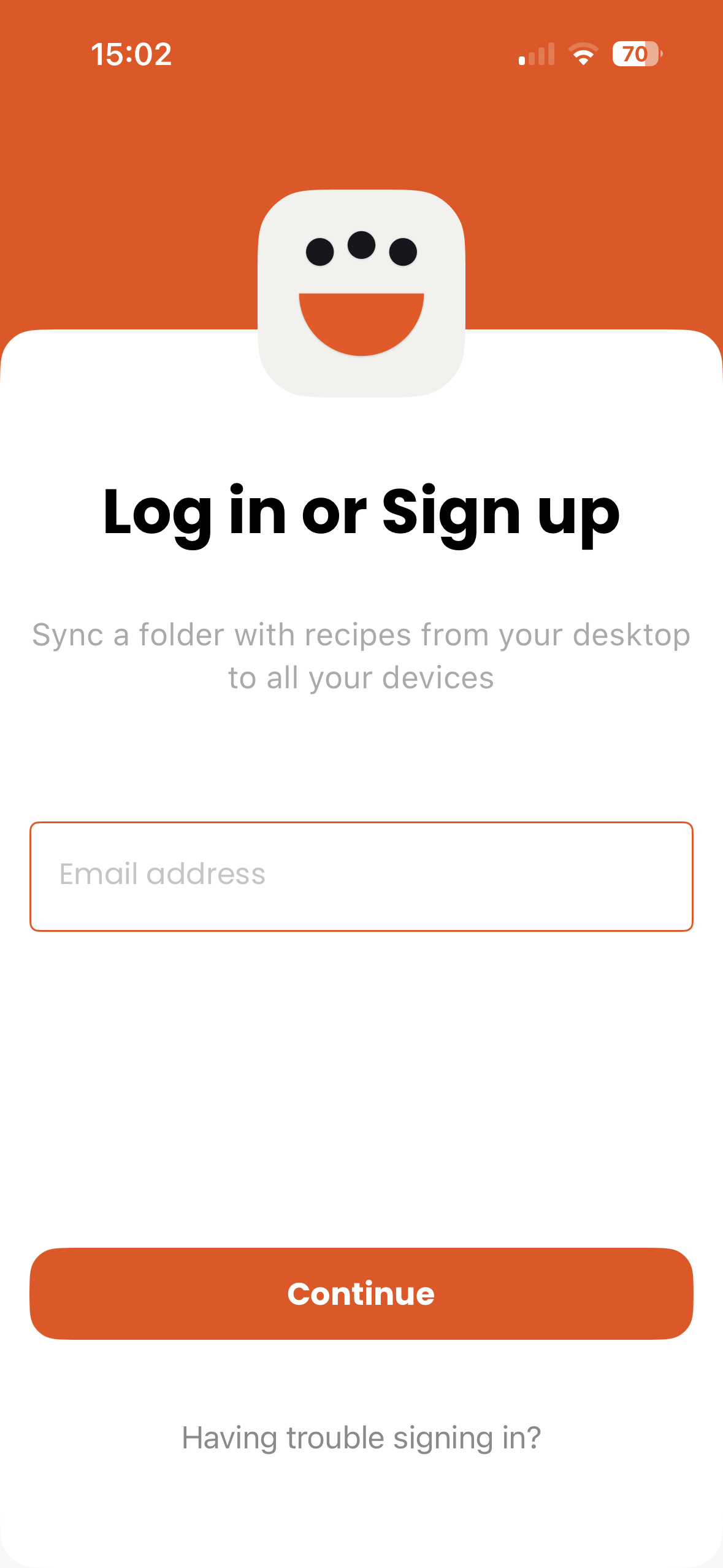
If you chose CookCloud, you'll need to sign in or create an account.
New Users
- Tap Sign Up
- Enter your email address
- Check your email for a verification code
- Enter the code in the app
- You're all set!
Existing Users
- Enter your email address
- Check your email for a login code
- Enter the code to sign in
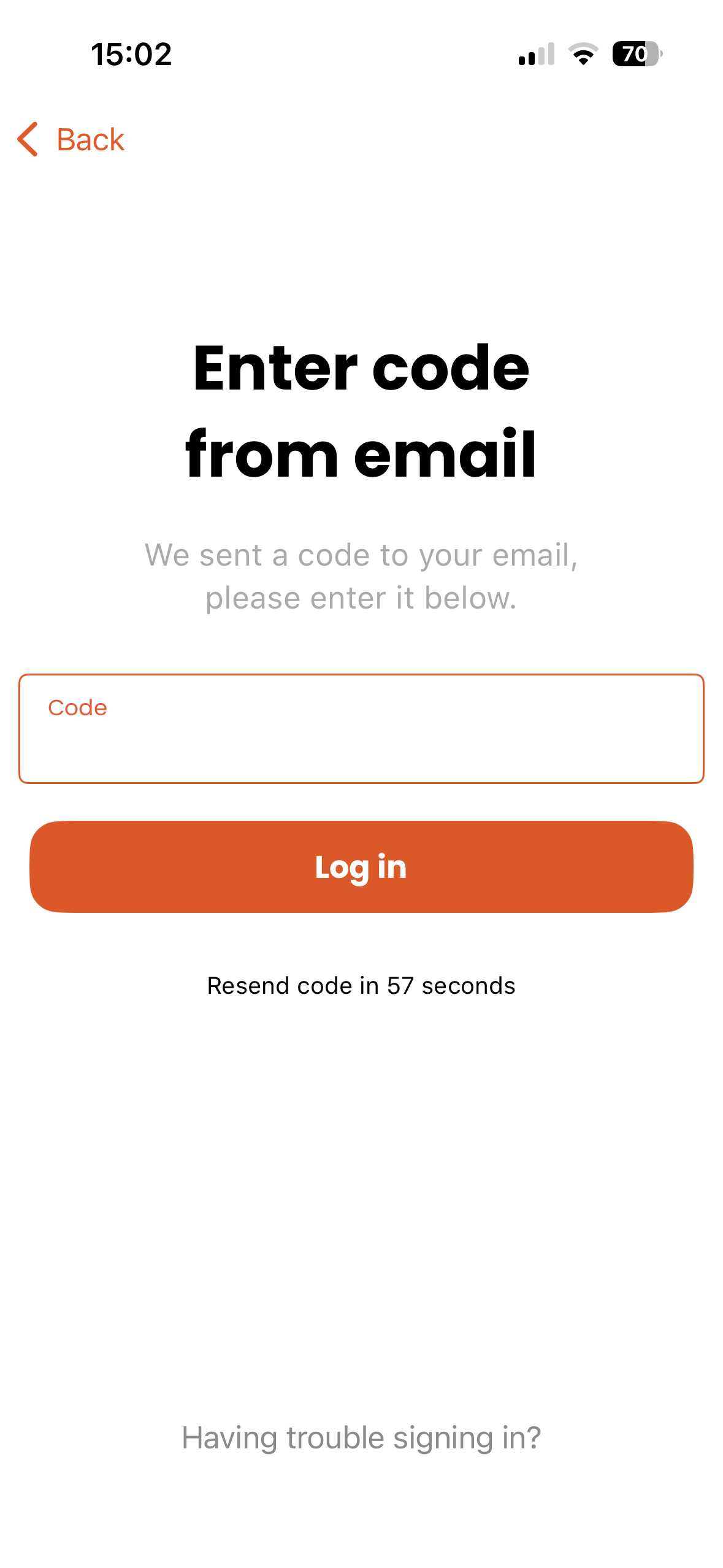
No password needed! We use secure email-based authentication. Each time you sign in, you'll receive a fresh code.
Adding Recipes
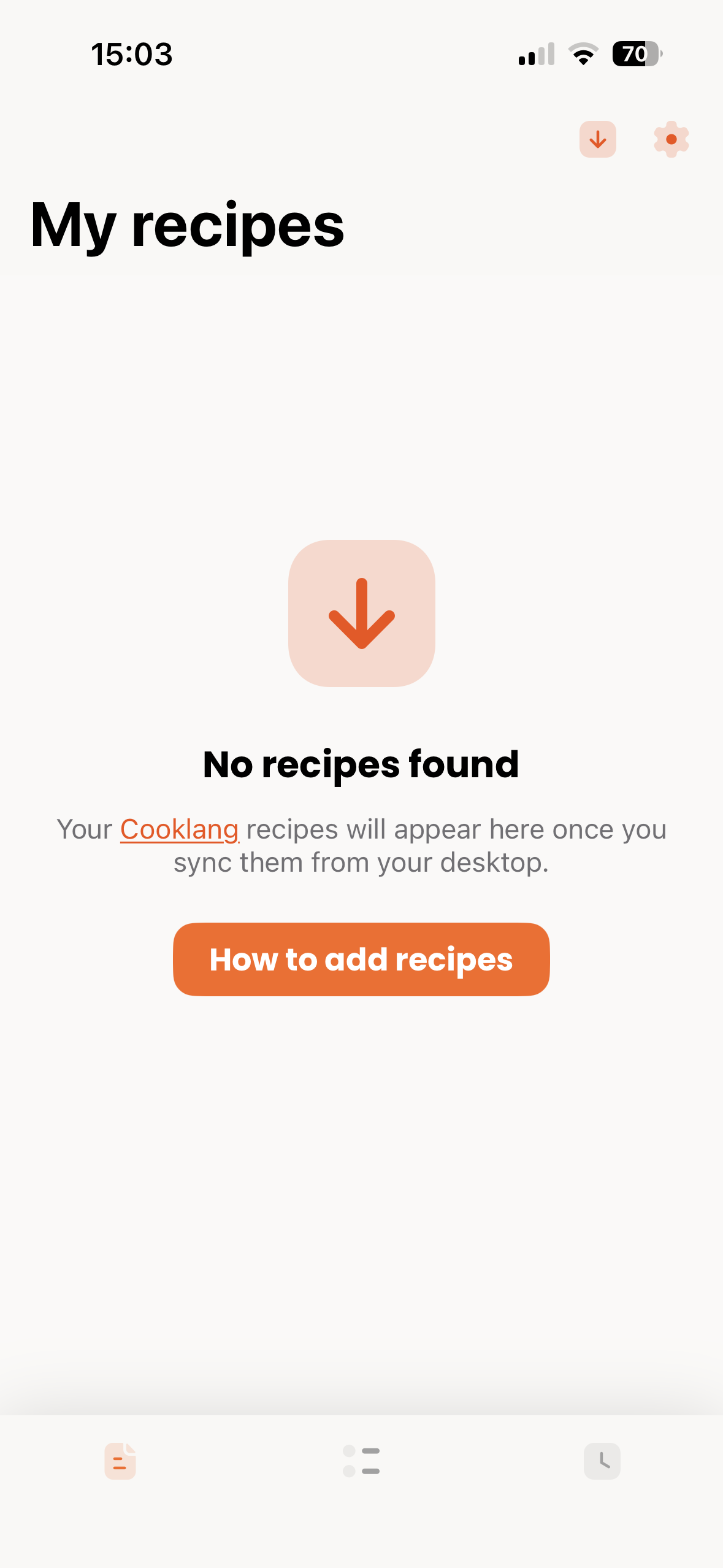
If this is your first time using Cook, you probably don't have any recipes yet. Here's how to add them:
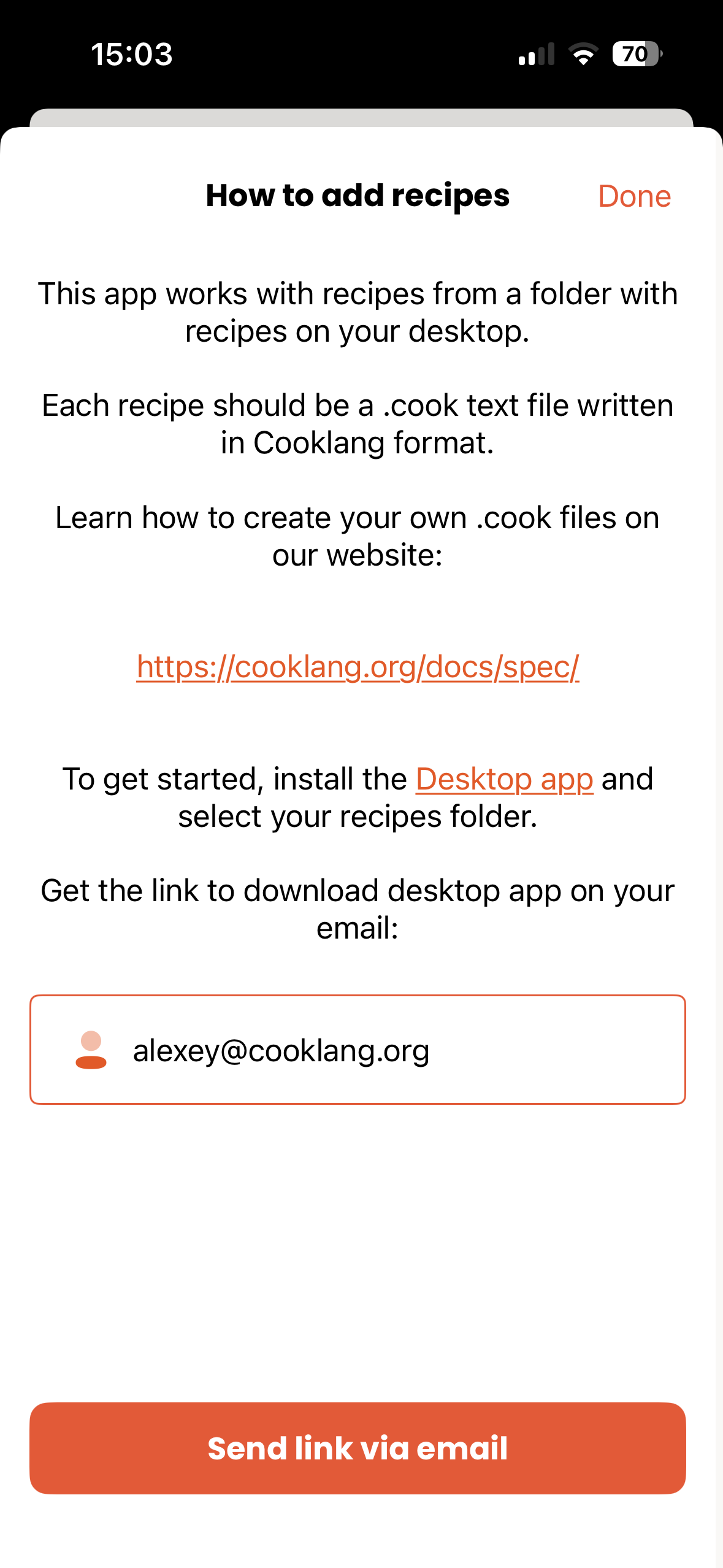
Using the Desktop App
The easiest way to add recipes is through the Cook desktop app or CookBot terminal application:
- Download the desktop app for your computer
- Sign in with the same account
- Add recipes to your recipes folder
- Recipes sync automatically to your iOS device
Using iCloud Drive
If you're using iCloud sync:
- Open the Files app on your device
- Navigate to iCloud Drive
- Create a folder for your recipes (or use the existing Cook folder)
- Add
.cookfiles to this folder
Learn Cooklang: Recipes are written in Cooklang format. Visit cooklang.org to learn the simple syntax.
Initial Sync
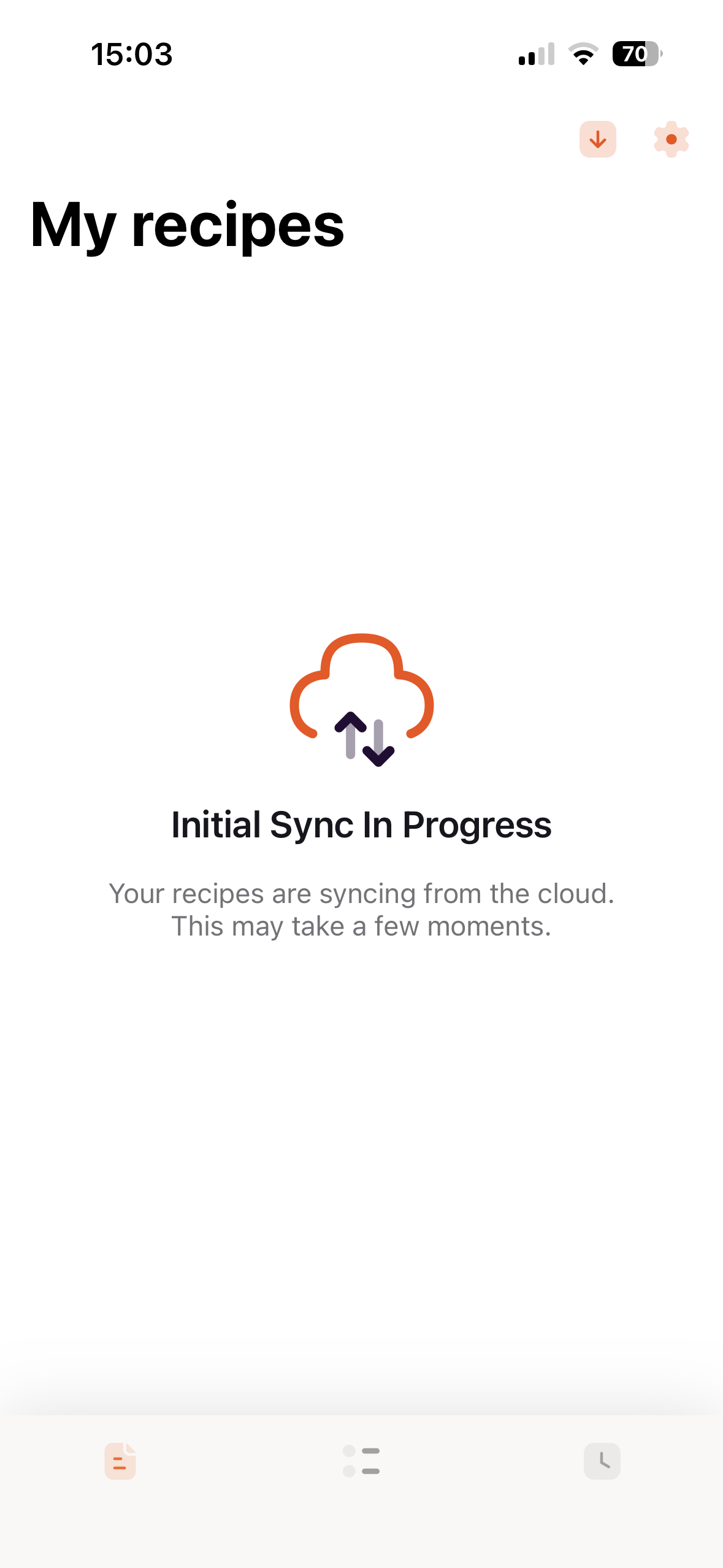
Once you've chosen a sync method and signed in, the app will begin syncing your recipes. This may take a few moments depending on your collection size.
Sync States
- Syncing: The app is downloading your recipes
- Synced: All recipes are up to date
- Sync Error: Something went wrong (check your connection)
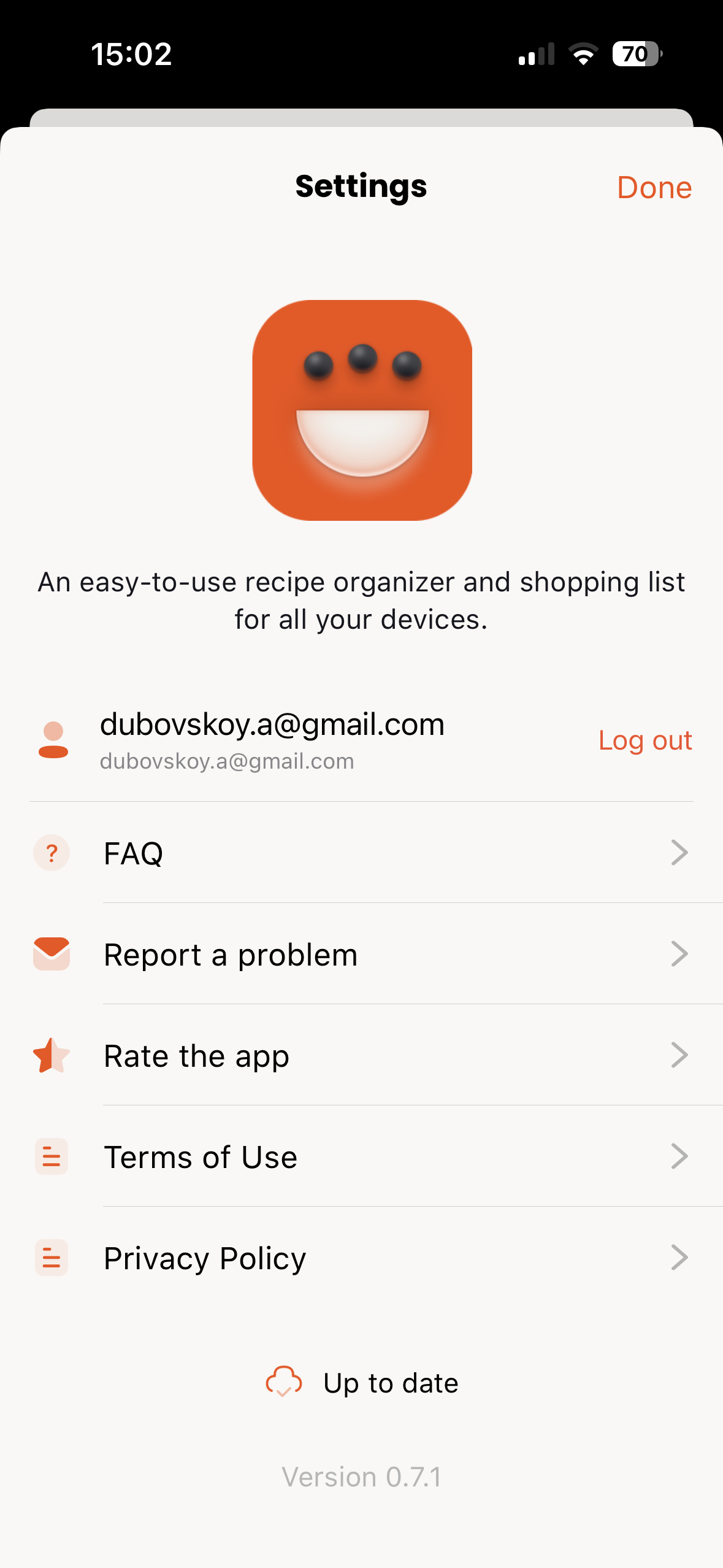
You can check sync status anytime in the Settings screen. The app shows when the last successful sync occurred.
All set up? Head to Using the App to learn about browsing recipes, cooking mode, shopping lists, and more.