
Using the AppGuide
Learn how to get the most out of the Cook Android app with this comprehensive guide.
My Recipes Screen
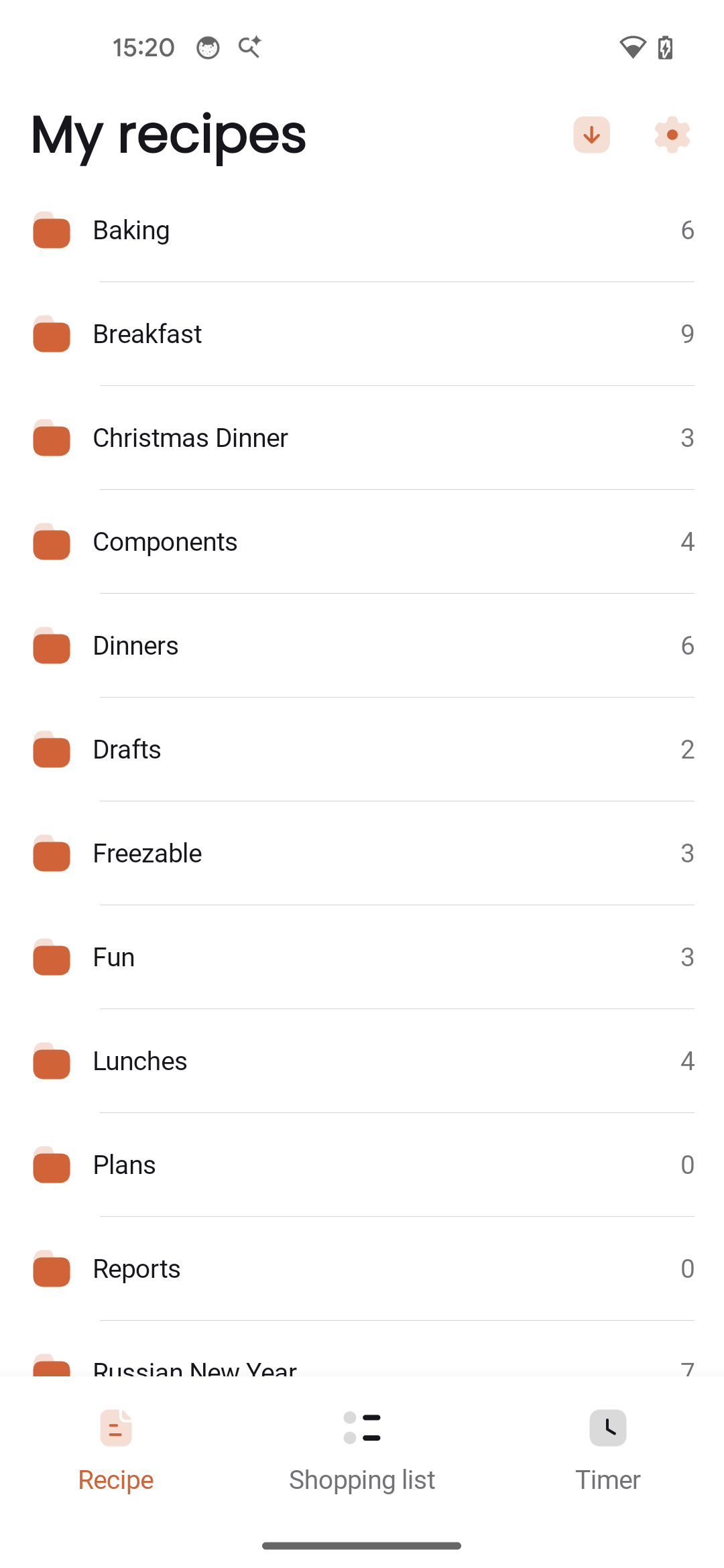
The main screen shows all your recipes organized by folder. This is where you'll spend most of your time browsing and selecting recipes.
Navigating Collections
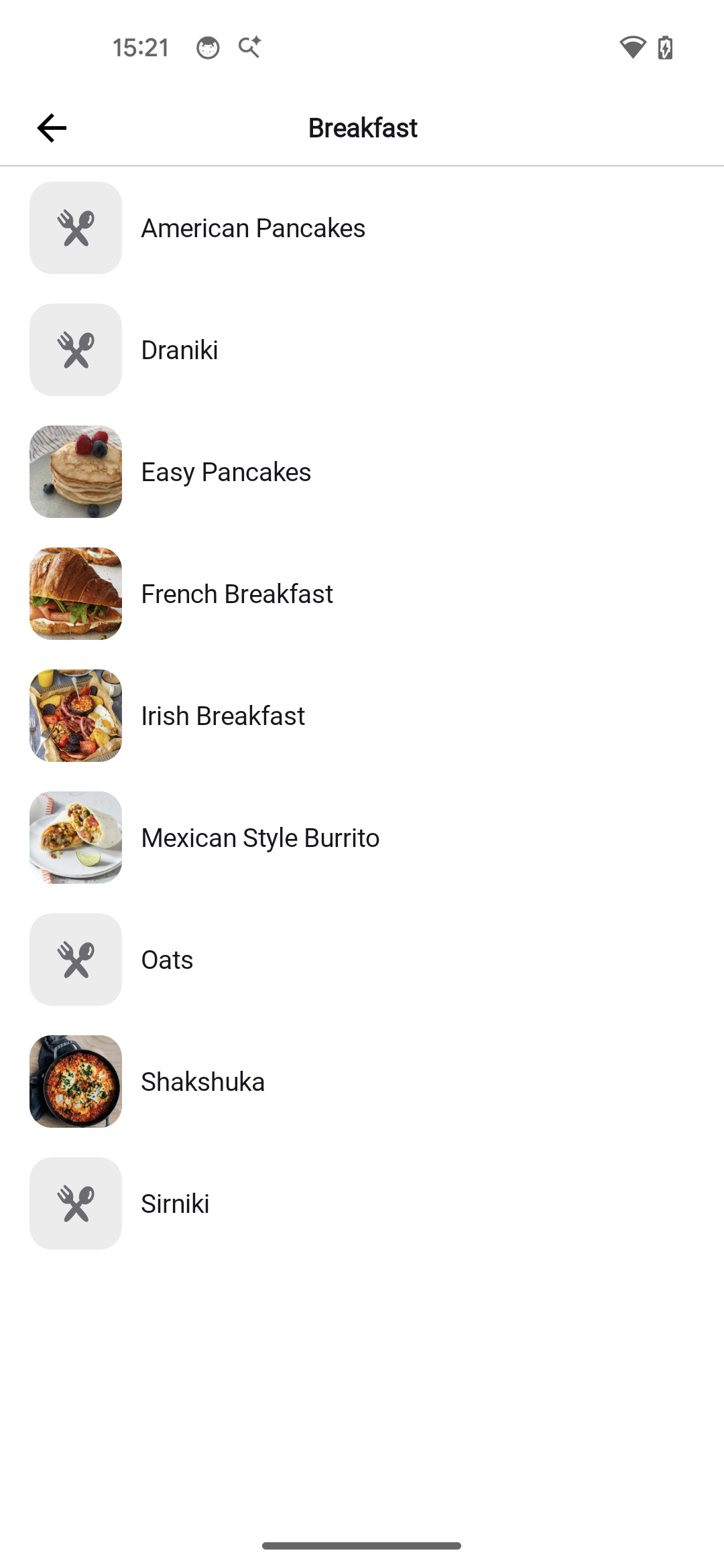
If your recipes are organized in folders (collections), tap a folder to navigate into it. A breadcrumb navigation trail helps you keep track of where you are. Use the back button to go up a level.
Refreshing
Pull down and release to refresh your recipes from the cloud. This checks for any changes made on other devices and syncs the latest updates.
Viewing Recipes
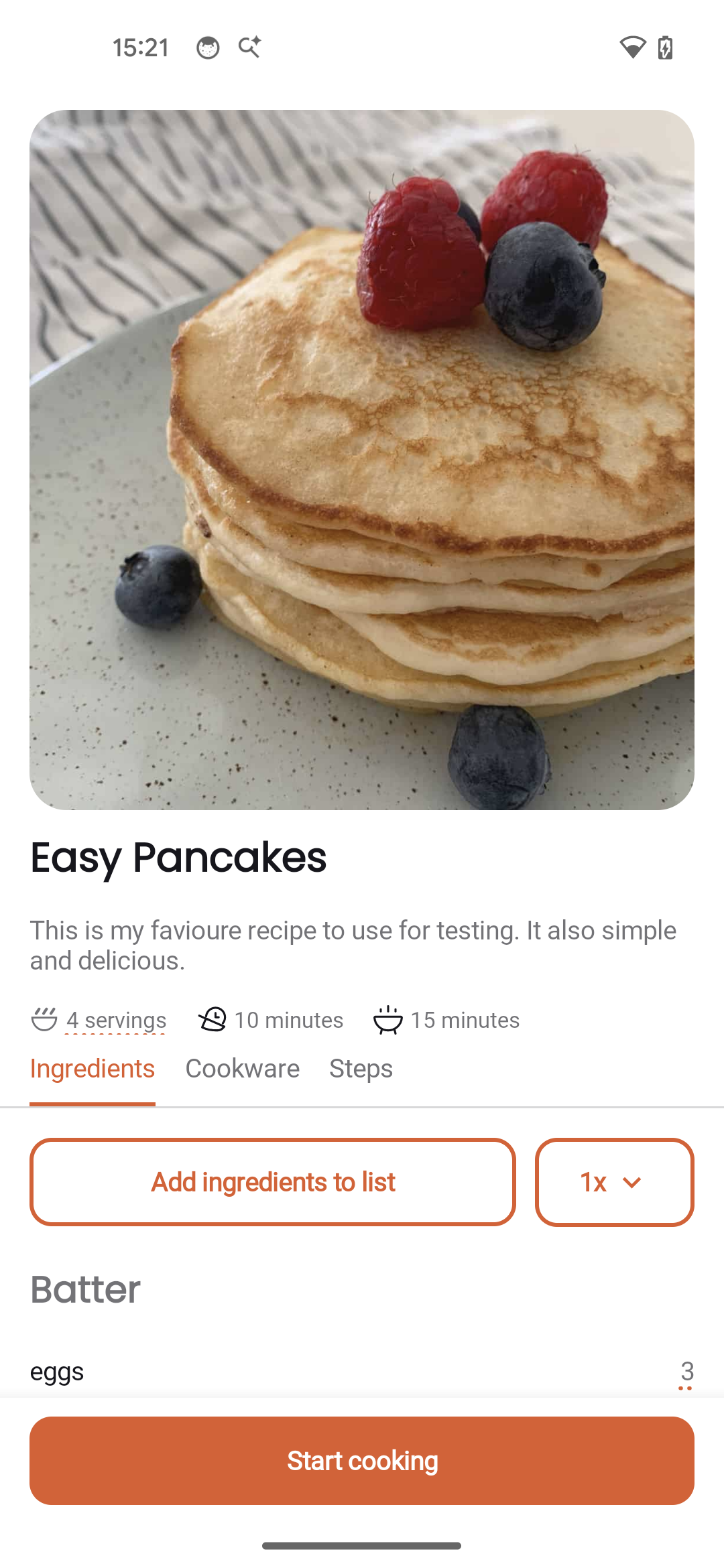
Tap any recipe to view its full details. The recipe view is organized into tabs for easy navigation.
Recipe Tabs
The recipe view has three main tabs:
- Overview - Recipe metadata, description, and key information
- Ingredients - Complete list of ingredients with quantities
- Steps - Step-by-step cooking instructions organized by sections
Recipe Information
Each recipe displays:
- Recipe name at the top
- Recipe image if available
- Metadata like servings, prep time, cook time, author
- Ingredients with quantities and units
- Cookware needed for the recipe
- Steps with clear instructions
Adding to Shopping List
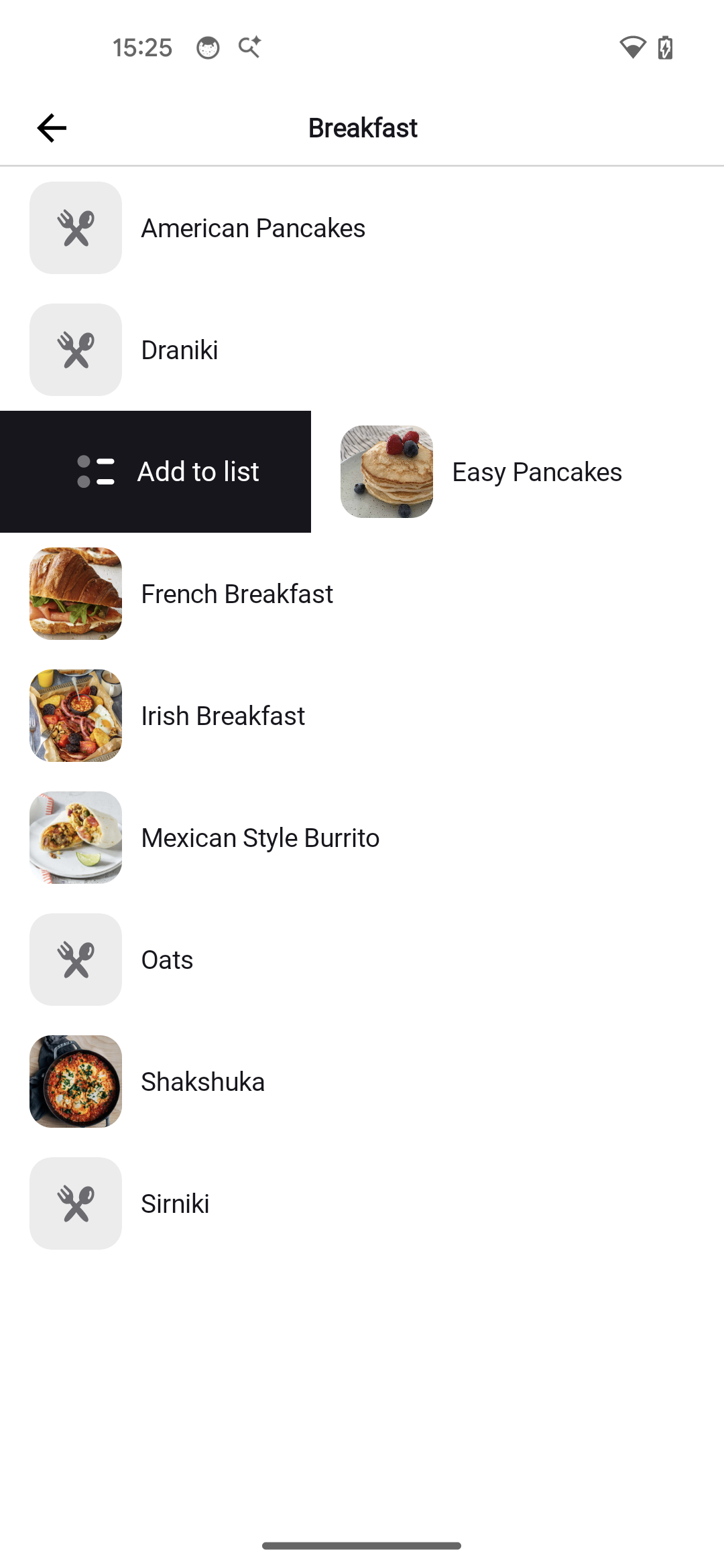
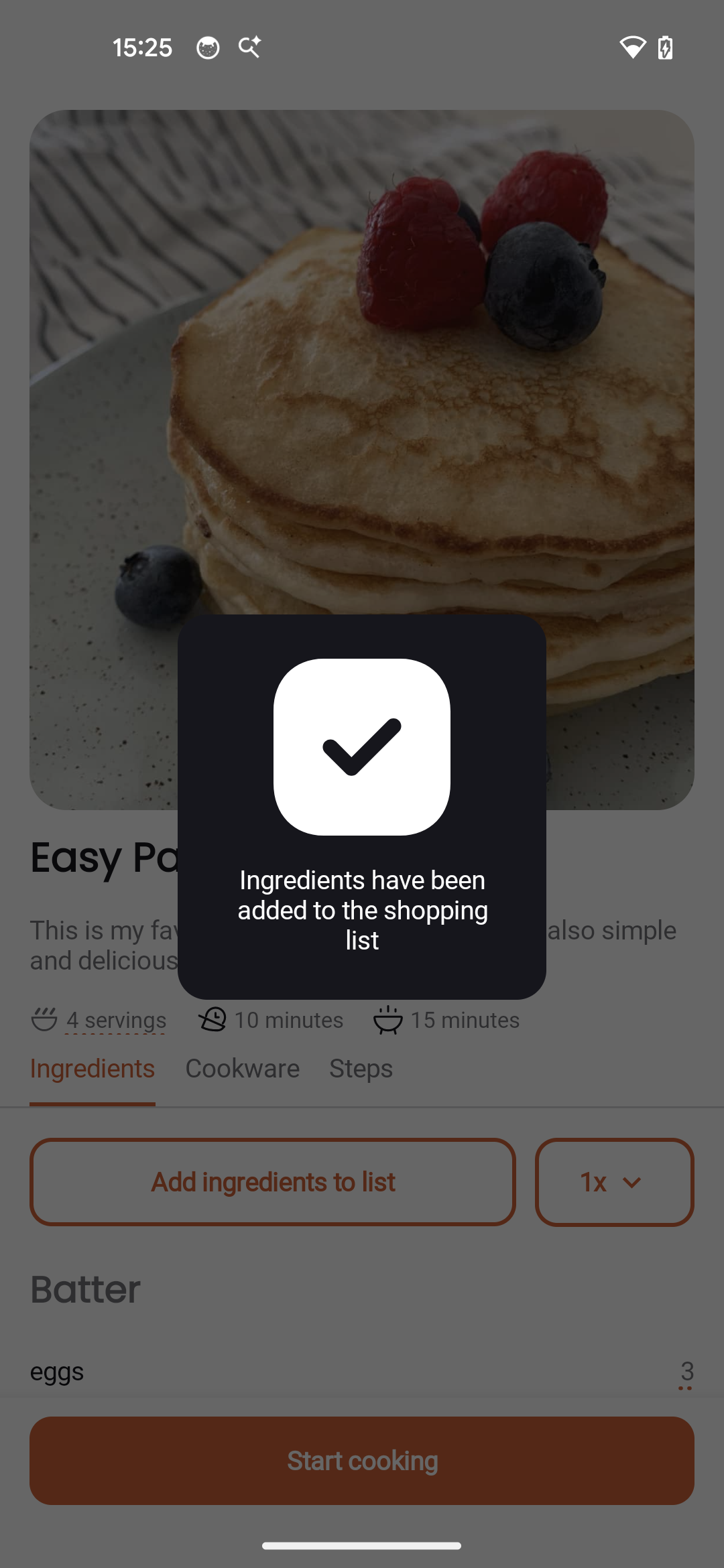
From the recipe view, tap the Add to Shopping List button to add all ingredients. You can also add ingredients from multiple recipes to plan a shopping trip.
Starting Cooking Mode
Tap the Start Cooking button to enter the immersive step-by-step cooking mode.
Metadata & Images
The app displays rich recipe metadata, giving you all the key information at a glance.
Supported Metadata
Recipe metadata is defined using YAML frontmatter at the beginning of your .cook file. The following fields are displayed when present:
---
servings: 4
time: 45 minutes
prep time: 15 minutes
cook time: 30 minutes
author: Chef John
---| Metadata | Example Value | Display |
|---|---|---|
| servings | 4 |
4 servings |
| time | 45 minutes |
45 minutes |
| prep time | 15 minutes |
15 min prep |
| cook time | 30 minutes |
30 min cook |
| author | Chef John |
Chef John |
Recipe Images
Add a beautiful header image to your recipe. The image displays prominently at the top of the recipe detail view.
Automatic Detection
Add images to your recipe by including a supported image file (.png, .jpg) matching the name of the recipe in the same directory:
Baked Potato.cook
Baked Potato.jpg
Step Images
You can also add images for specific steps by including a step number before the file extension:
Chicken French.cook
Chicken French.0.jpg
Chicken French.3.jpg
Using Metadata
Alternatively, specify the image in the frontmatter. Images can be local files or URLs:
---
image: pasta-carbonara.jpg
---
Or reference an image from the web:
---
image: https://example.com/pasta-carbonara.jpg
---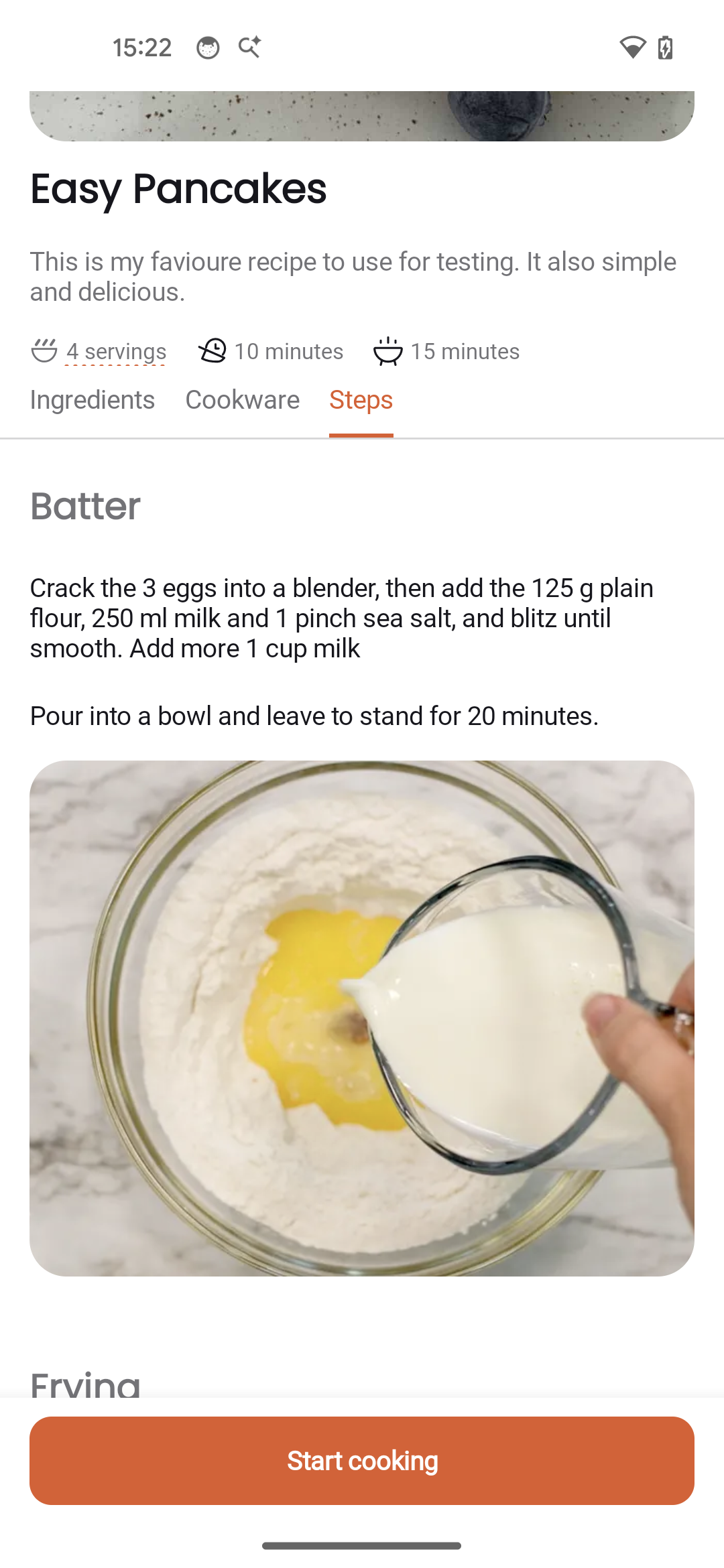
Image Requirements:
- Place the image file in the same folder as your recipe
- Use common formats: JPG, PNG, or WebP
Scaling Recipes
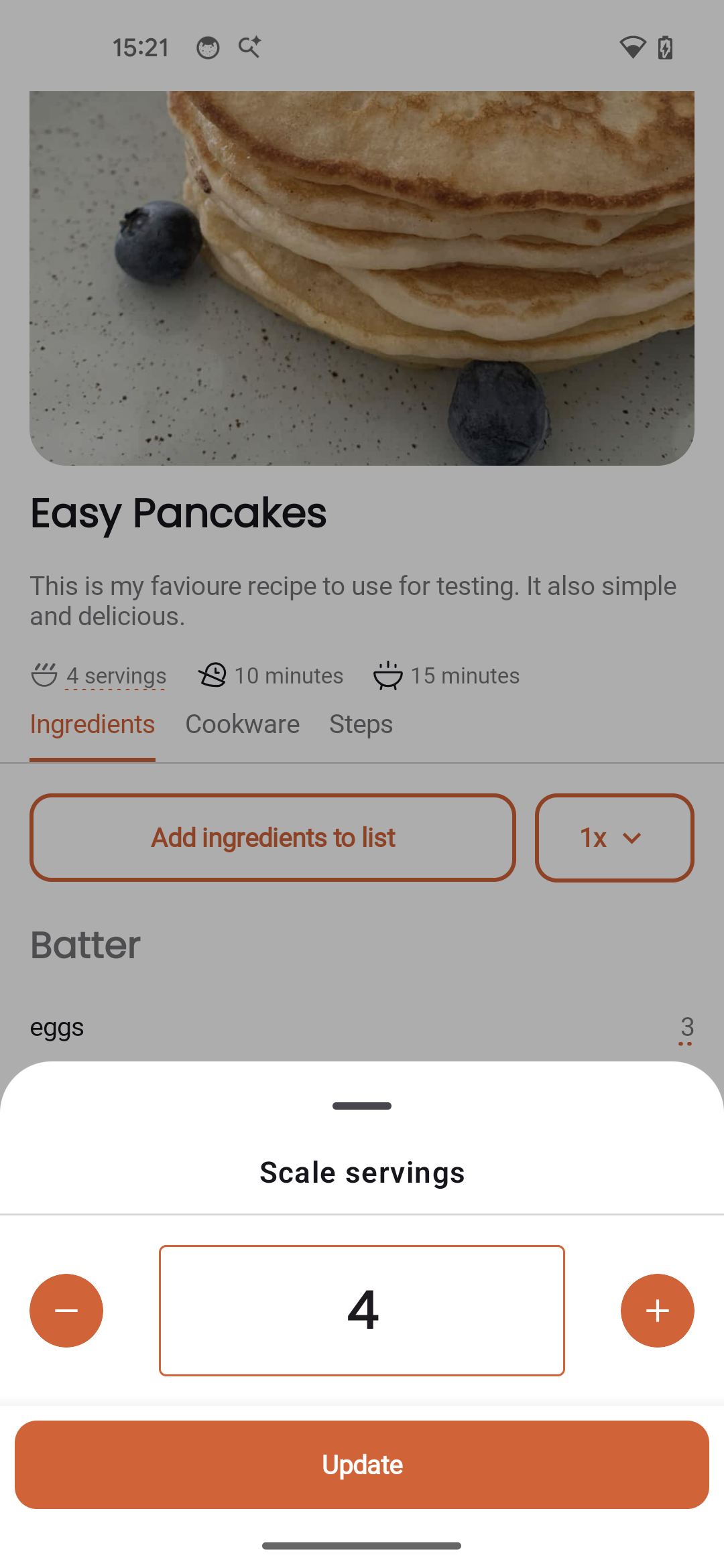
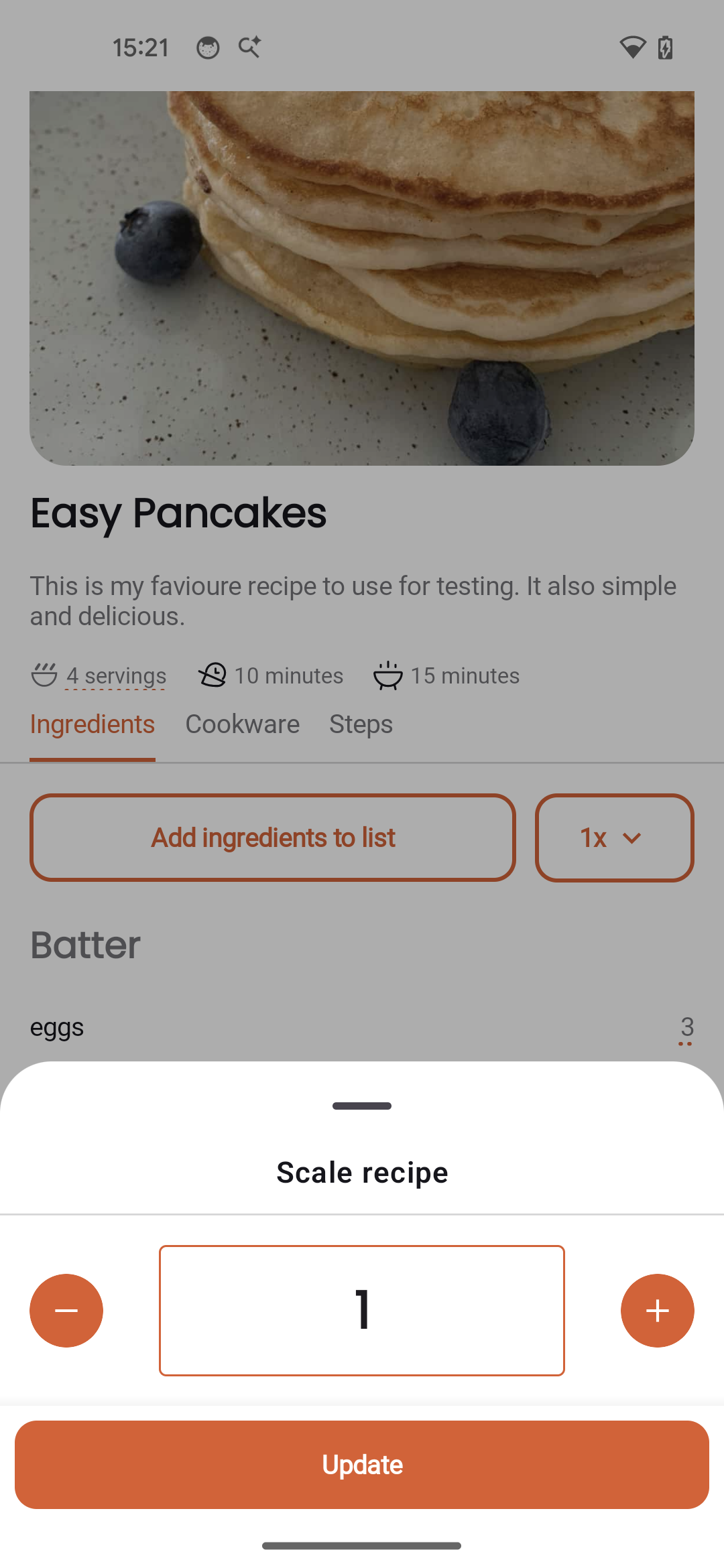
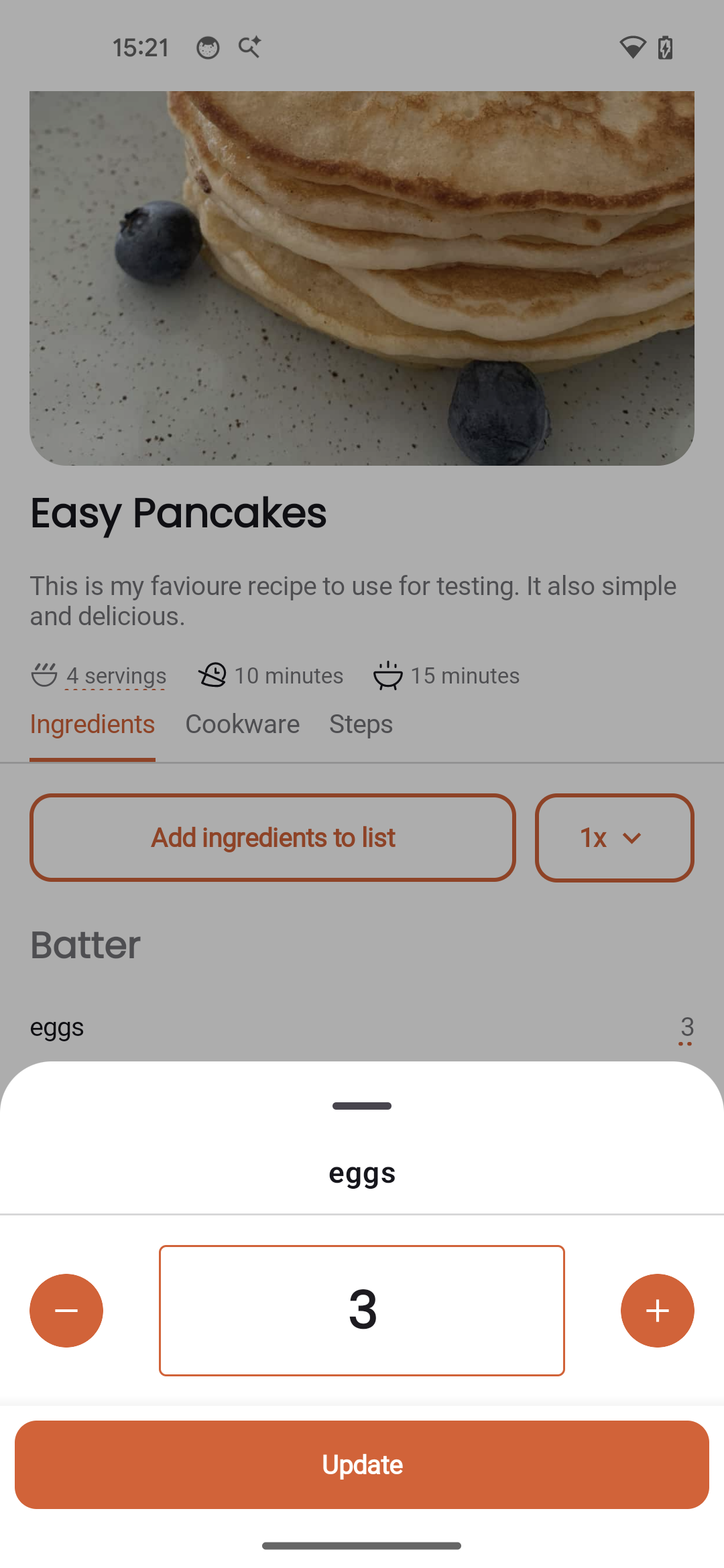
Easily adjust recipe quantities when cooking for more or fewer people. The app automatically recalculates all ingredient amounts.
How to Scale
Look for the scale controls in the recipe view:
Using +/- Buttons
Tap the plus and minus buttons to increment or decrement the serving count. All ingredient quantities update instantly.
Manual Input
Tap on the current scale value to enter a specific number manually.
Baker's Percentages
For baking recipes, the app supports baker's percentage scaling. This allows you to scale based on flour weight, which is the standard method for professional bakers.
What Gets Scaled
- Numeric quantities - All amounts like "200 g" or "2 cups" scale proportionally
- Servings - The servings metadata updates to reflect the scaled amount
- Shopping list - When you add ingredients to the shopping list, they use the scaled quantities
What Doesn't Scale
- Text quantities - Amounts like "a pinch" or "to taste" remain unchanged
- Cooking times - Timer durations stay the same
- Instructions - Step text remains unchanged
Note: While ingredient quantities scale mathematically, cooking times may need adjustment for larger batches. A doubled cake batter may need slightly longer baking time.
Cooking Mode
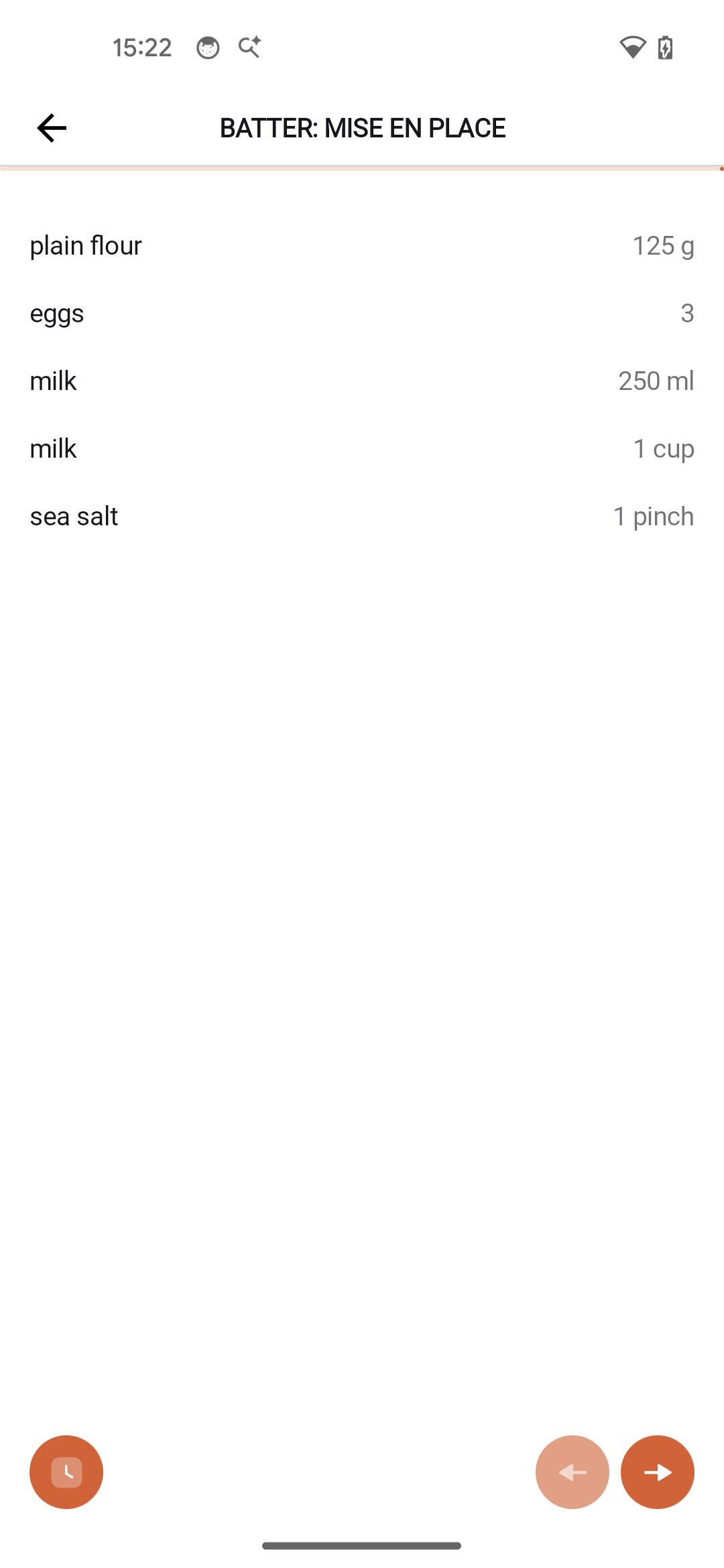
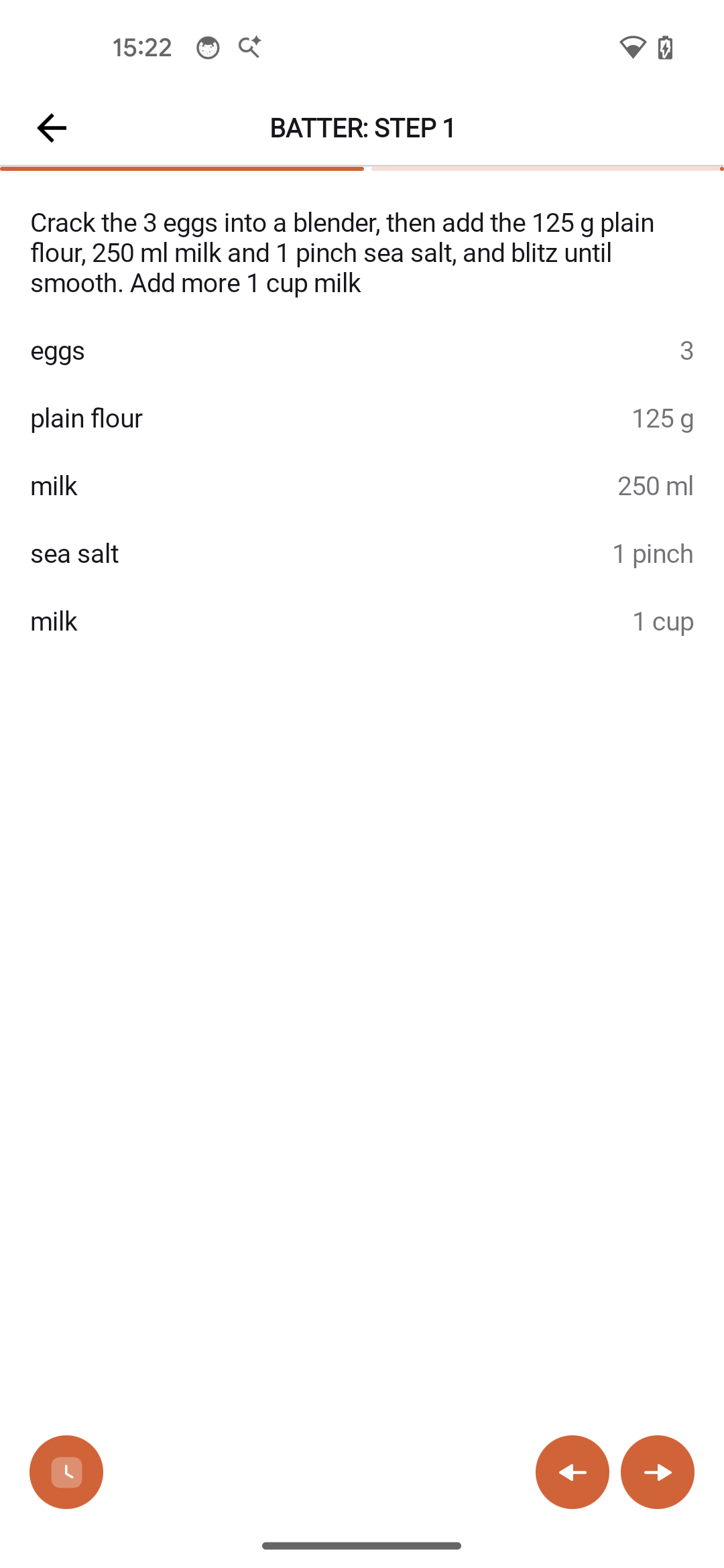
Cooking mode provides an immersive, full-screen experience that displays one step at a time. Perfect for following along while you cook.
Mise en Place
Before cooking begins, the app shows a mise en place screen listing all the ingredients you'll need for the current section. This helps you gather everything before you start cooking.
Navigation
- Swipe left to go to the next step
- Swipe right to go back to the previous step
- The progress indicator at the bottom shows your current position
Ingredient Highlights
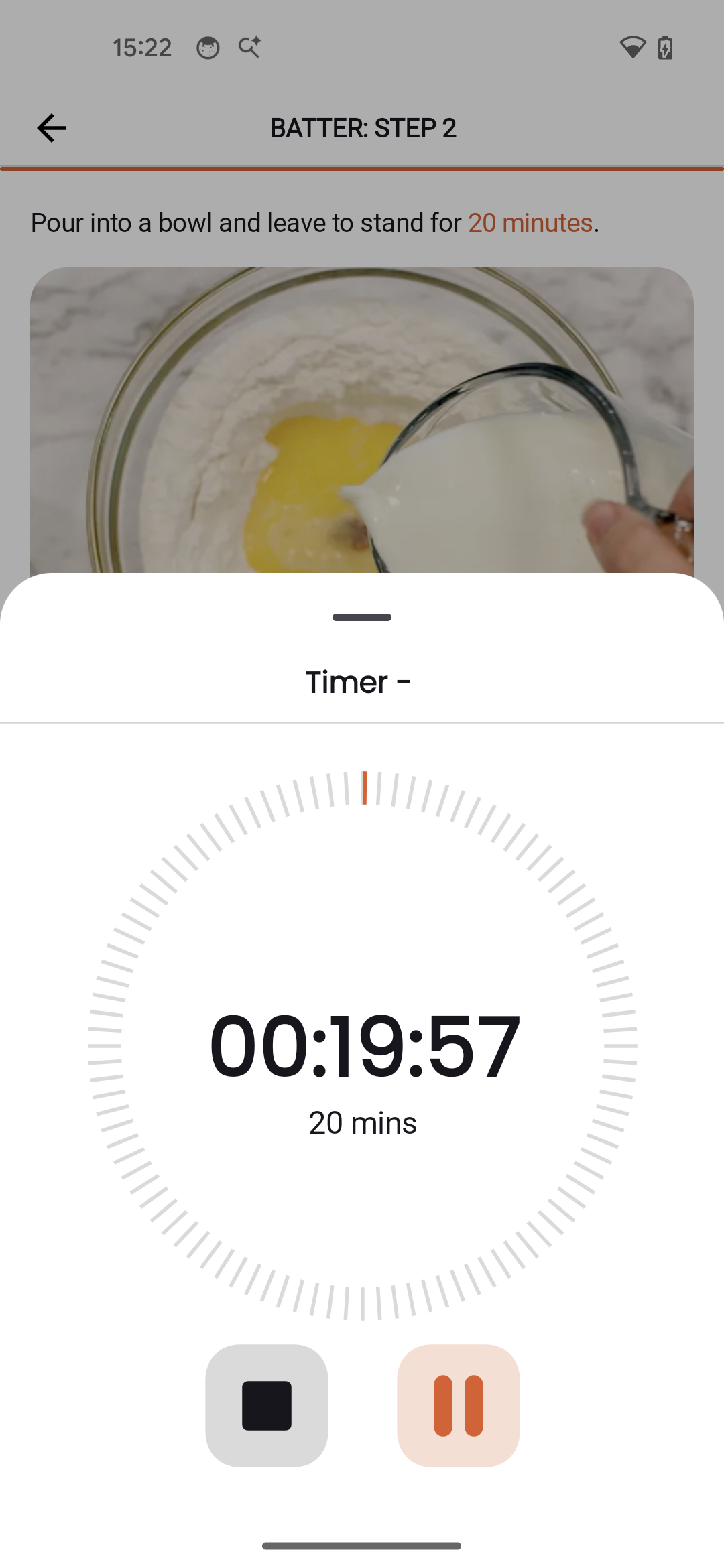
Each step shows which ingredients are used in that particular step. These are highlighted at the bottom of the screen for quick reference.
Quick Timer Access
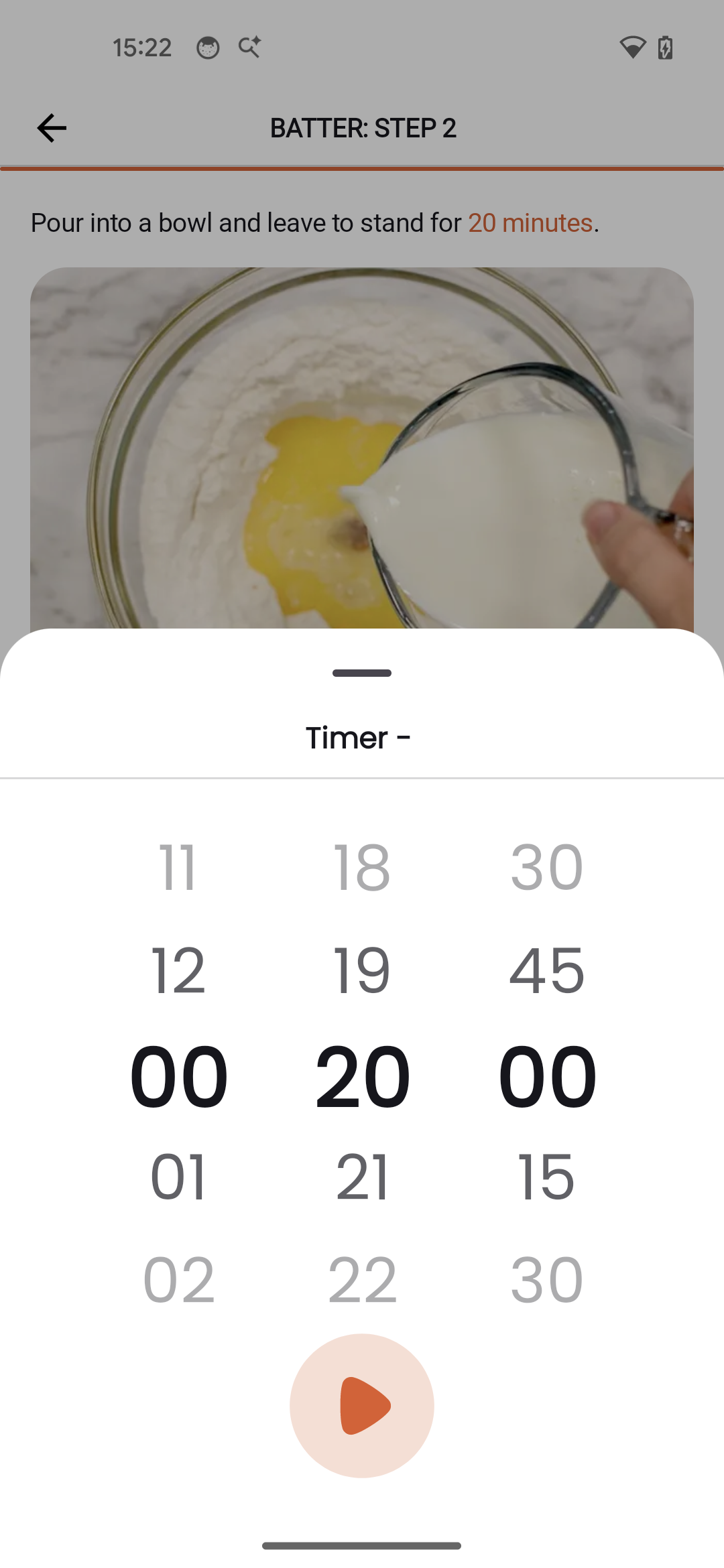
When a step mentions a time (like "cook for 10 minutes"), you can quickly start a timer directly from the cooking step.
Exiting Cooking Mode
Tap the back arrow or use the Android back gesture to exit cooking mode and return to the recipe view.
Scenario: You're making a complex dish with pasta boiling, sauce simmering, and bread in the oven - each with different times. Set a timer for each from the cooking steps, and the app tracks them all with background notifications.
Using Timers
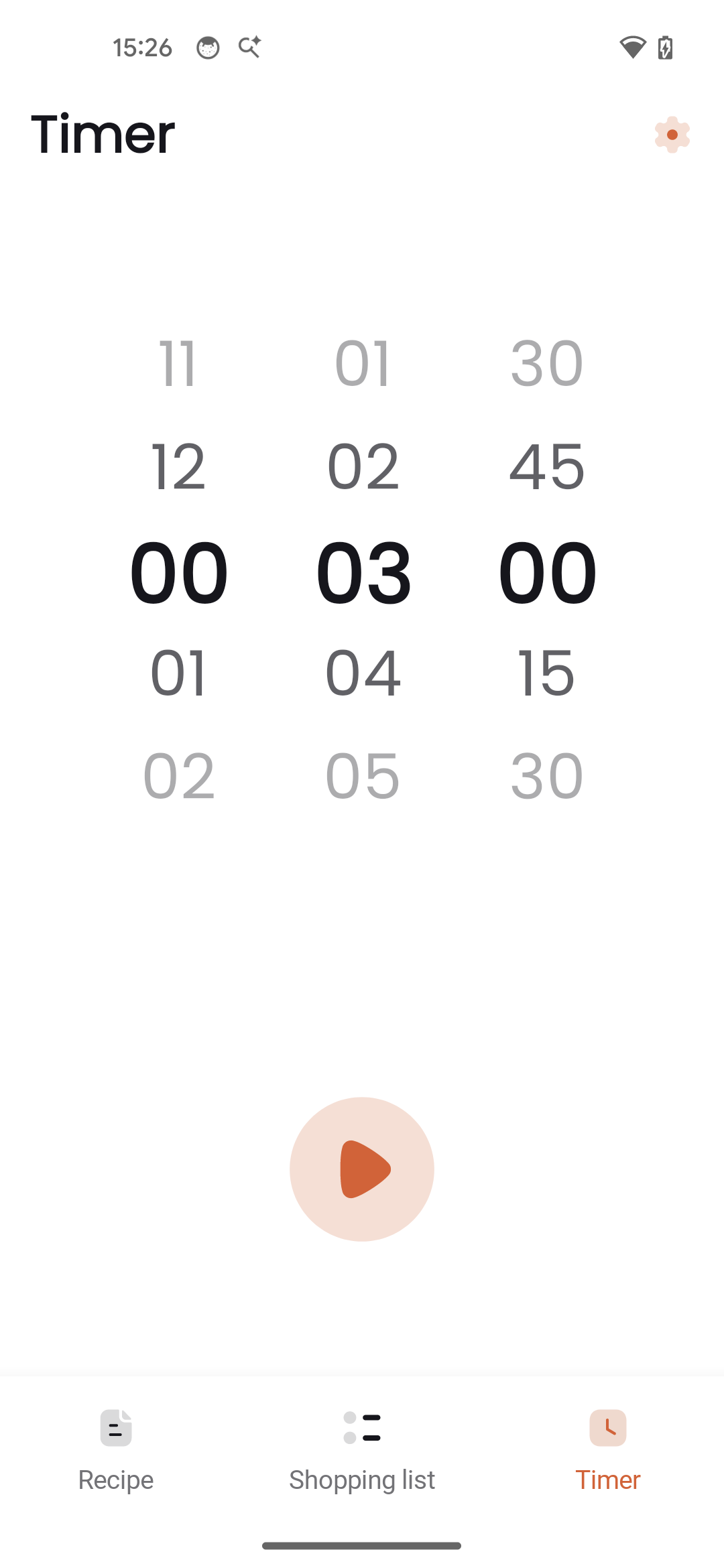
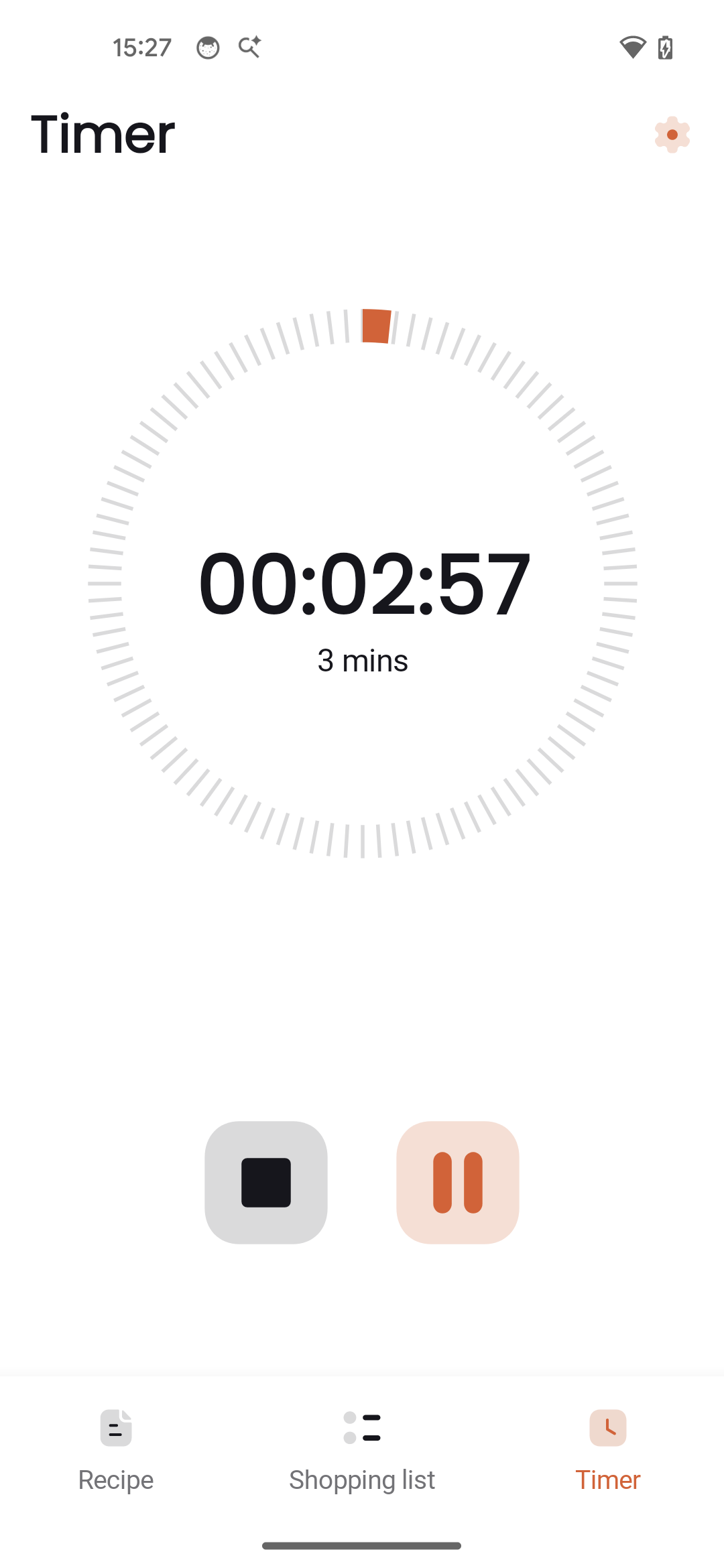
The app includes powerful timer functionality for tracking cooking times. Timers continue running even when the app is in the background or closed.
Starting a Timer
Timers can be started in several ways:
- Tap a time mentioned in a cooking step (like "cook for 10 minutes")
- Use the dedicated Timer screen from the bottom navigation
- Set a custom time using the timer creation dialog
Timer Controls
- Play/Pause - Start or pause the timer
- Restart - Reset and restart the timer
- Manual adjustment - Tap the time display to manually adjust the remaining time
Preset Durations
When creating a new timer, you'll see preset duration options for common cooking times. You can also enter a custom duration.
Timer Notifications
When a timer completes, you'll receive a notification with:
- An alarm sound
- Device vibration
- A notification even if the app is closed
Tip: Make sure notifications are enabled for Cook in your Android settings to receive timer alerts. Also ensure the app has permission for alarms and reminders.
Shopping List
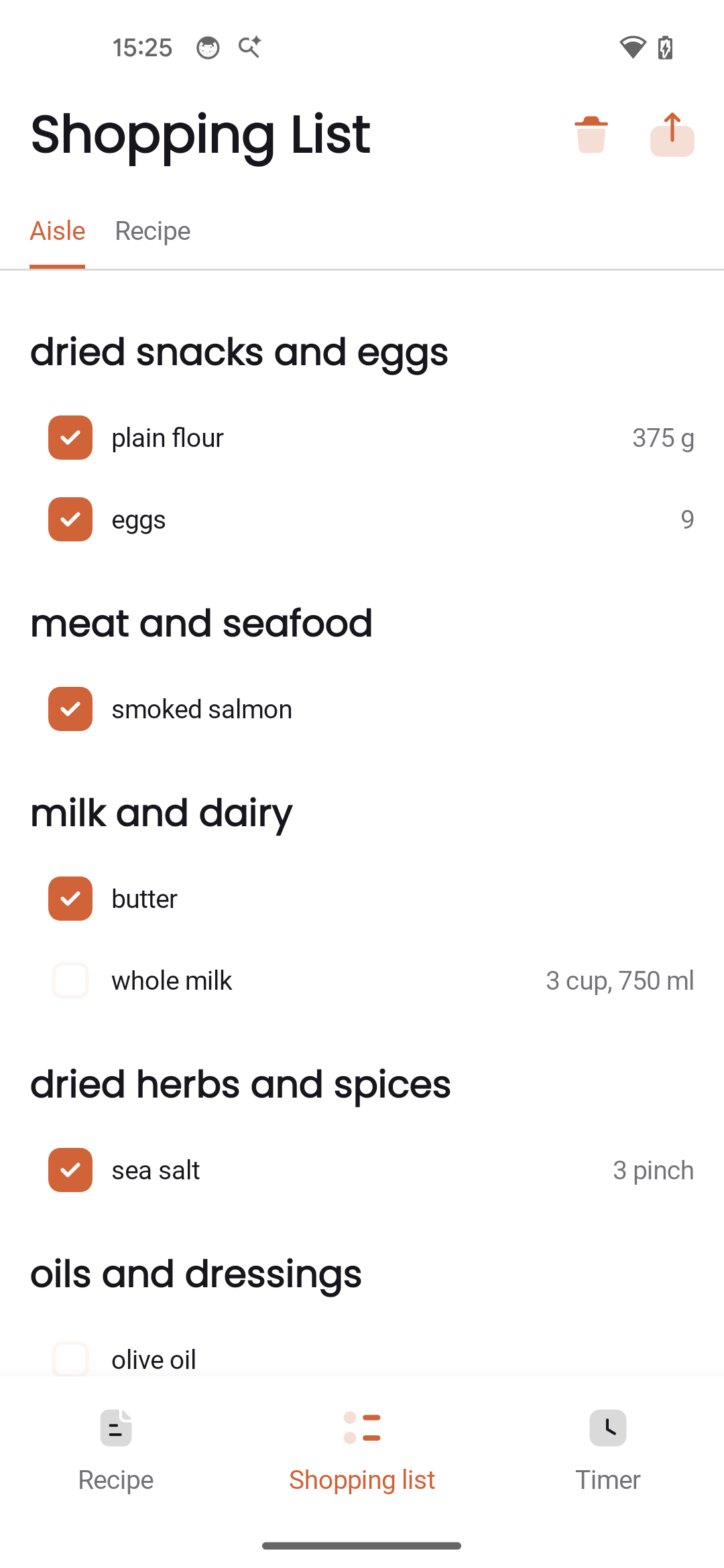
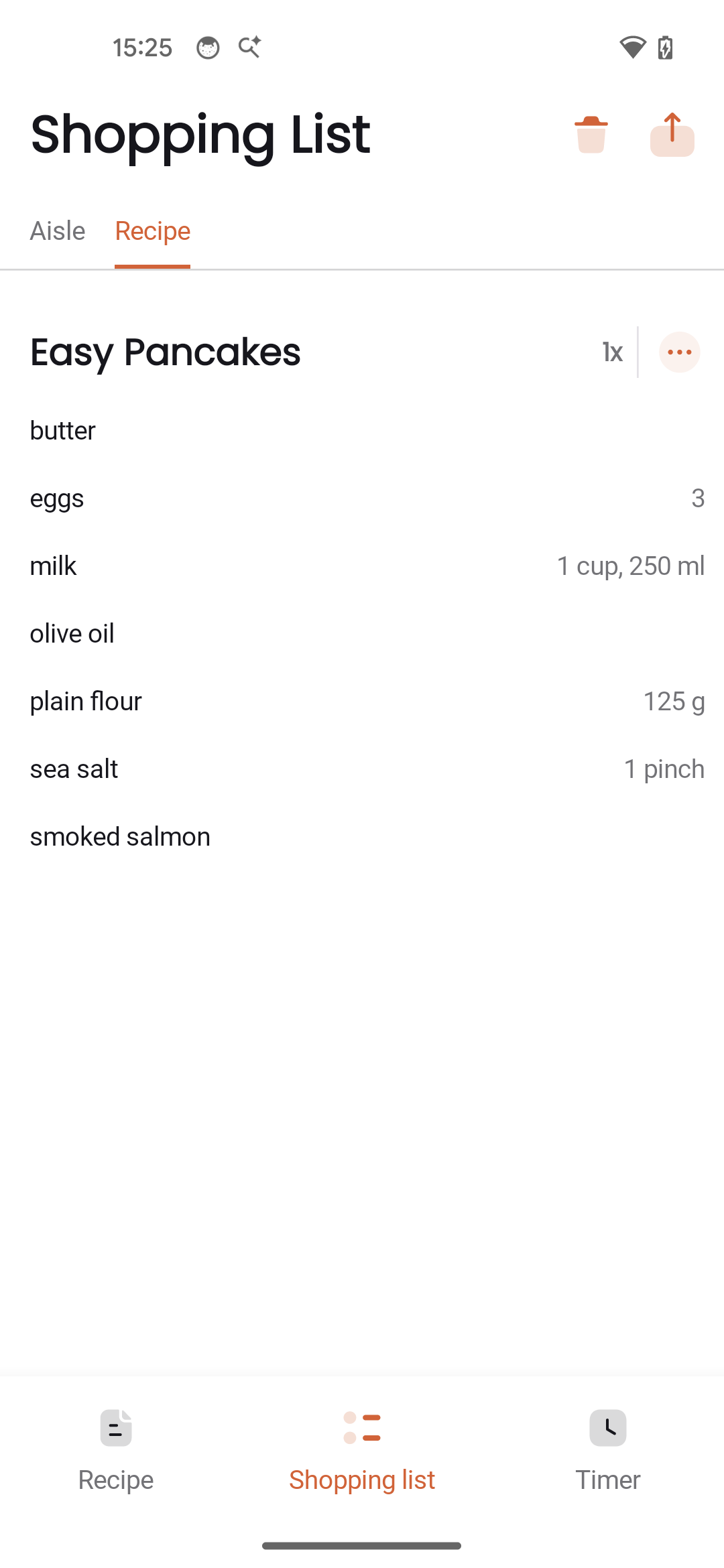
The shopping list helps you buy ingredients for your recipes. You can view items organized by recipe or by aisle for efficient shopping.
View Modes
Switch between two view modes:
- By Recipe - See shopping items grouped by which recipe they came from
- By Aisle - Items organized by supermarket section (produce, dairy, pantry, etc.)
Aisle Organization
Items are automatically organized by aisle (fruit and veg, dried snacks and eggs, meat and seafood, milk and dairy, etc.). This makes shopping faster as you move through the store.
Customize aisle groupings by creating a config/aisle.conf file in your recipes folder. Define sections with [section name] and list ingredients below. The shopping list preserves the order of sections as they appear in the file.
[fruit and veg]
lime
garlic
red onions
coriander

[milk and dairy]
whole milk|milk
eggs|egg
cottage cheese
butter

[meat and seafood]
smoked salmon
king prawns

[tinned goods and baking]
plain flour|flour
sugar
yeast

[dried herbs and spices]
sea salt|salt
black pepper
rosemary
thyme

[oils and dressings]
olive oil|oil
soya sauce
Aliases
Use the pipe character (|) to define aliases. The first name is the common name shown in the shopping list; additional names are matched from your recipes. For example, whole milk|milk means any recipe using @milk or @whole milk will appear under "milk and dairy" and display as "whole milk."
Any ingredient not listed in your config will appear in a default "other" section. See the Cooklang shopping documentation for the full configuration format.
Tip: The aisle.conf file syncs with your recipes, so your aisle configuration works across all your devices.
Adding Items
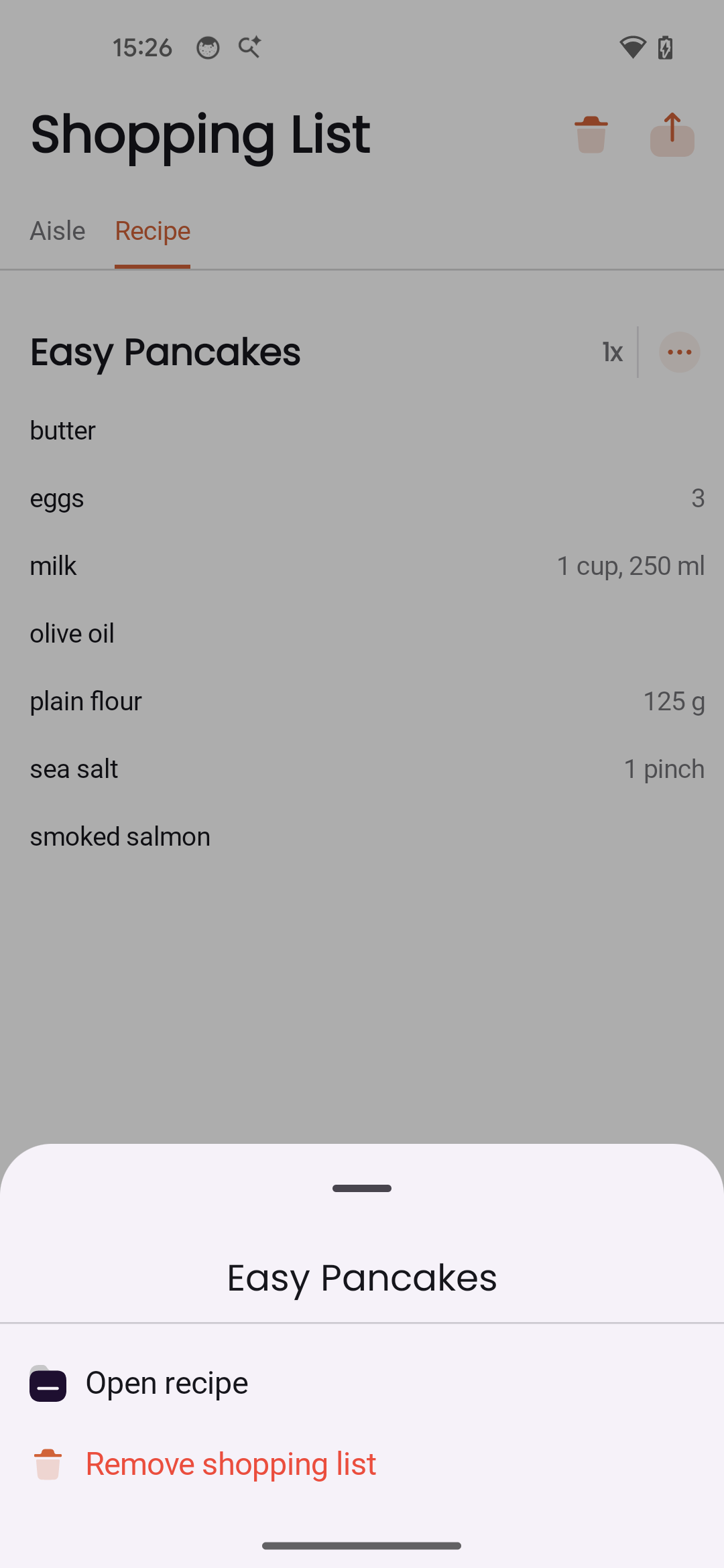
Add ingredients to your shopping list from any recipe. You can add from multiple recipes to plan a complete shopping trip.
Scenario: You're planning meals for the week. Open each recipe, scale it to the right number of servings, and tap "Add ingredients to list." The shopping list combines everything you need across all recipes.
Checking Off Items
Tap an item to check it off as you shop. The app provides haptic feedback to confirm your action. Checked items show as completed.
Sharing the List
Tap the share button to send your shopping list as text via any Android sharing method - Messages, Email, WhatsApp, or any other app. Great for coordinating with family members.
Clearing the List
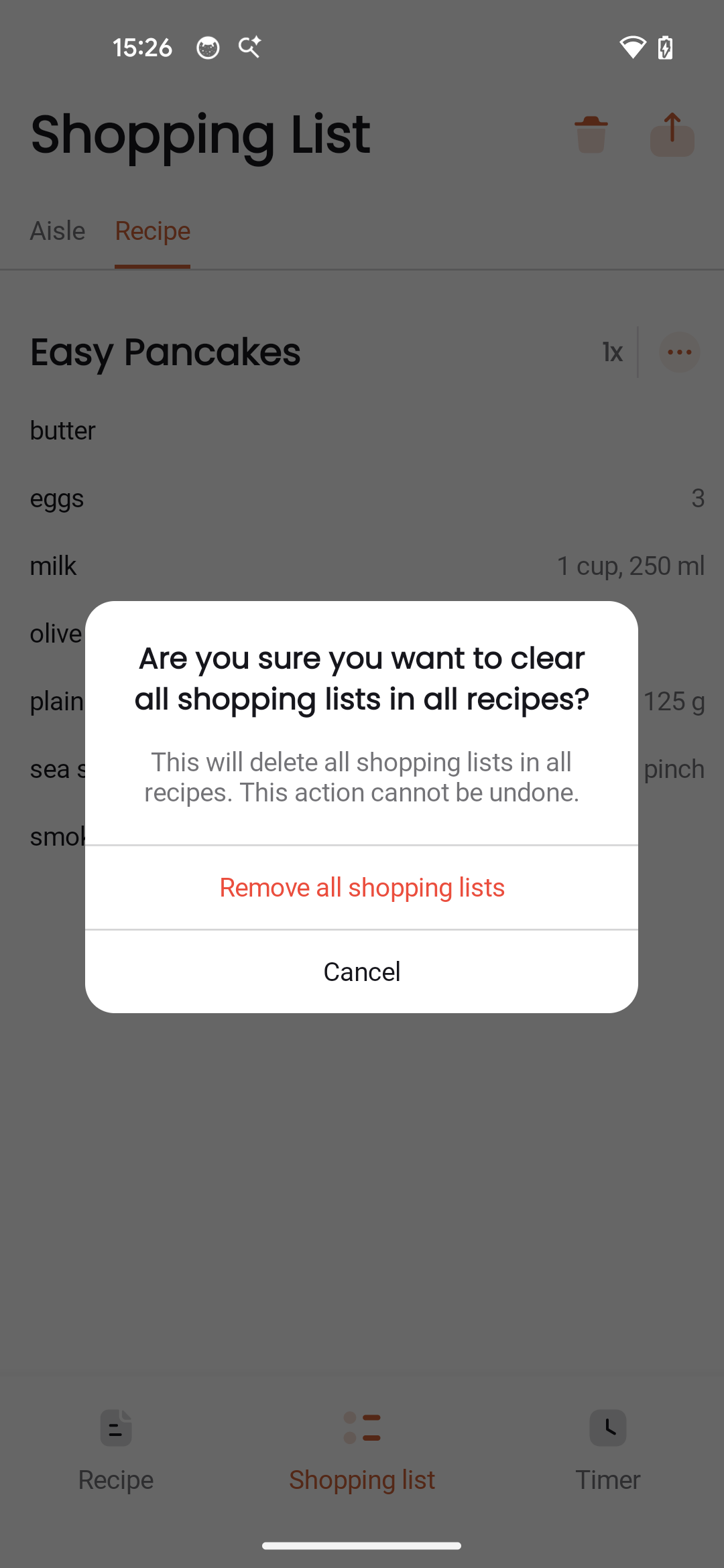
Use the clear button to remove all items at once. You'll be asked to confirm before clearing. This is useful after completing a shopping trip.
Combined Quantities
If you add the same ingredient from multiple recipes, the app intelligently combines the quantities so you know the total amount needed.
Clip Recipe
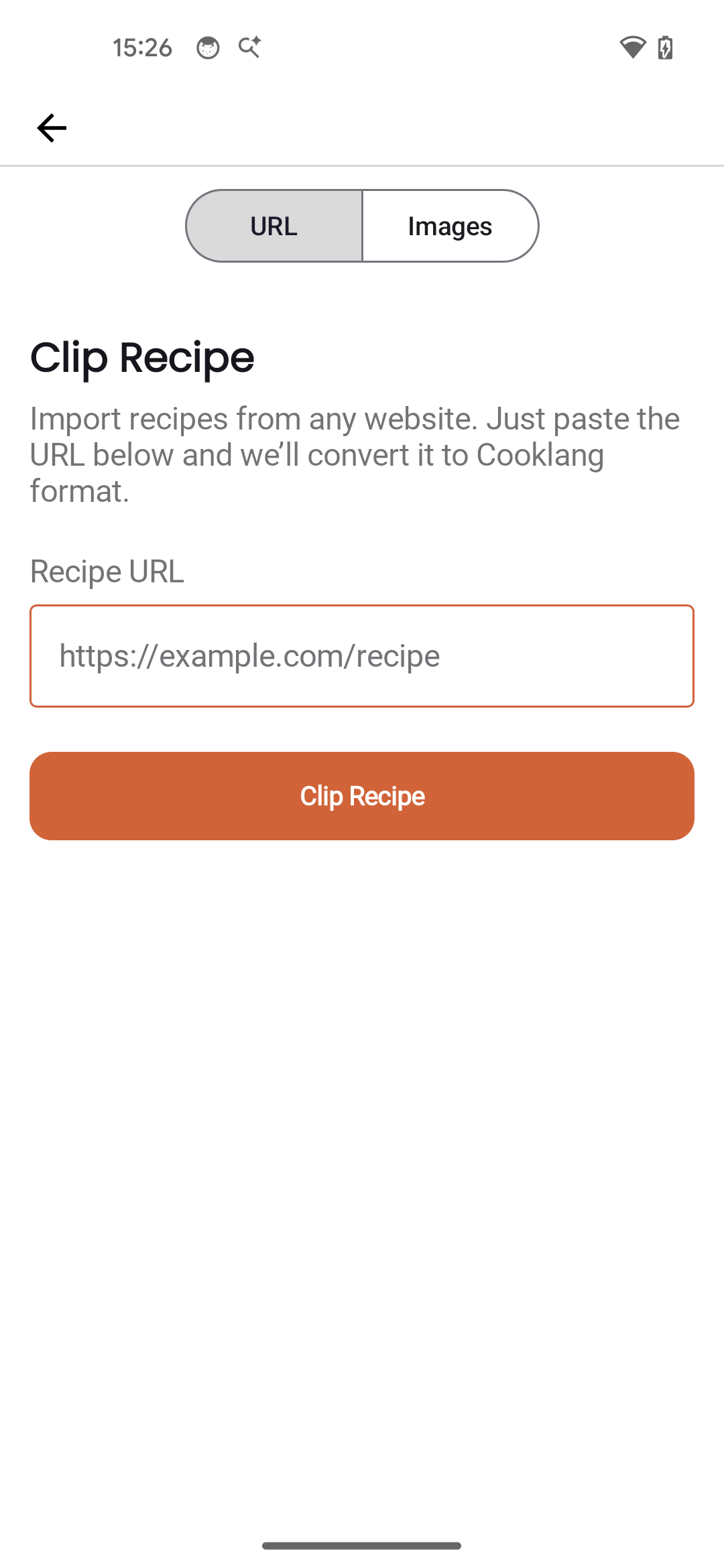
Found a recipe online? Use Clip Recipe to import it into your collection automatically in Cooklang format.
From a Website
- Tap the + button on the My Recipes screen
- Select the URL tab
- Paste the recipe URL
- Tap Clip Recipe - the app extracts ingredients, steps, and metadata automatically
From a Photo
- Tap the + button
- Select the Images tab
- Take a photo of a cookbook page or add screenshots
- The app uses AI to extract the recipe text and convert it to Cooklang format
Scenario: You're browsing a food blog and find a recipe you love. Instead of bookmarking the URL (which might change), clip it and it becomes a permanent part of your collection - accessible offline and synced to all your devices.
Settings & Account
Access settings from the navigation menu or bottom bar.
Account Information
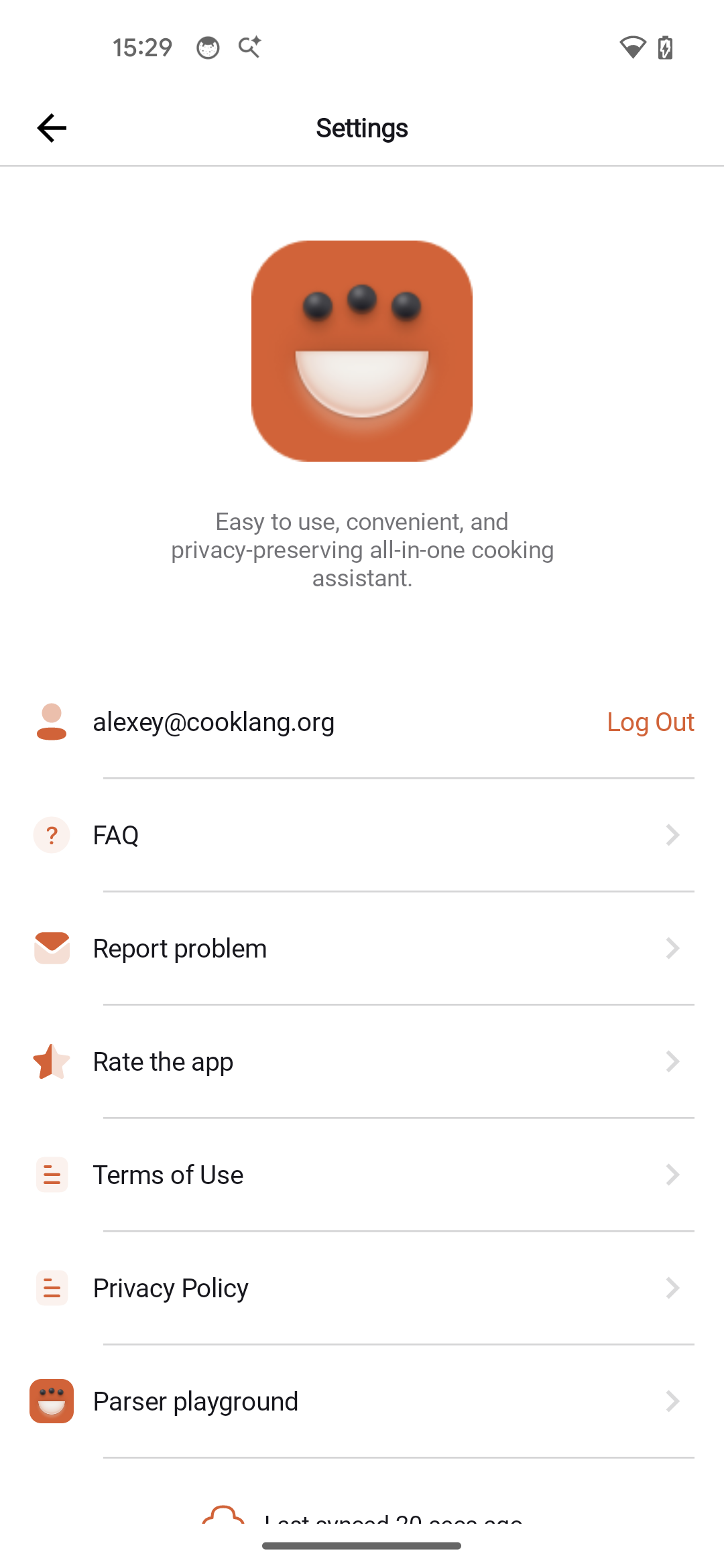
View your account details and sign-out option. If using CookCloud, you'll see your account email and profile information here.
Sync Status
Check when your recipes were last synced. If there's a problem with sync, you'll see an error indicator here.
Re-authentication
If your session expires or there's an authentication issue, you can re-authenticate from the settings screen without losing your local data.
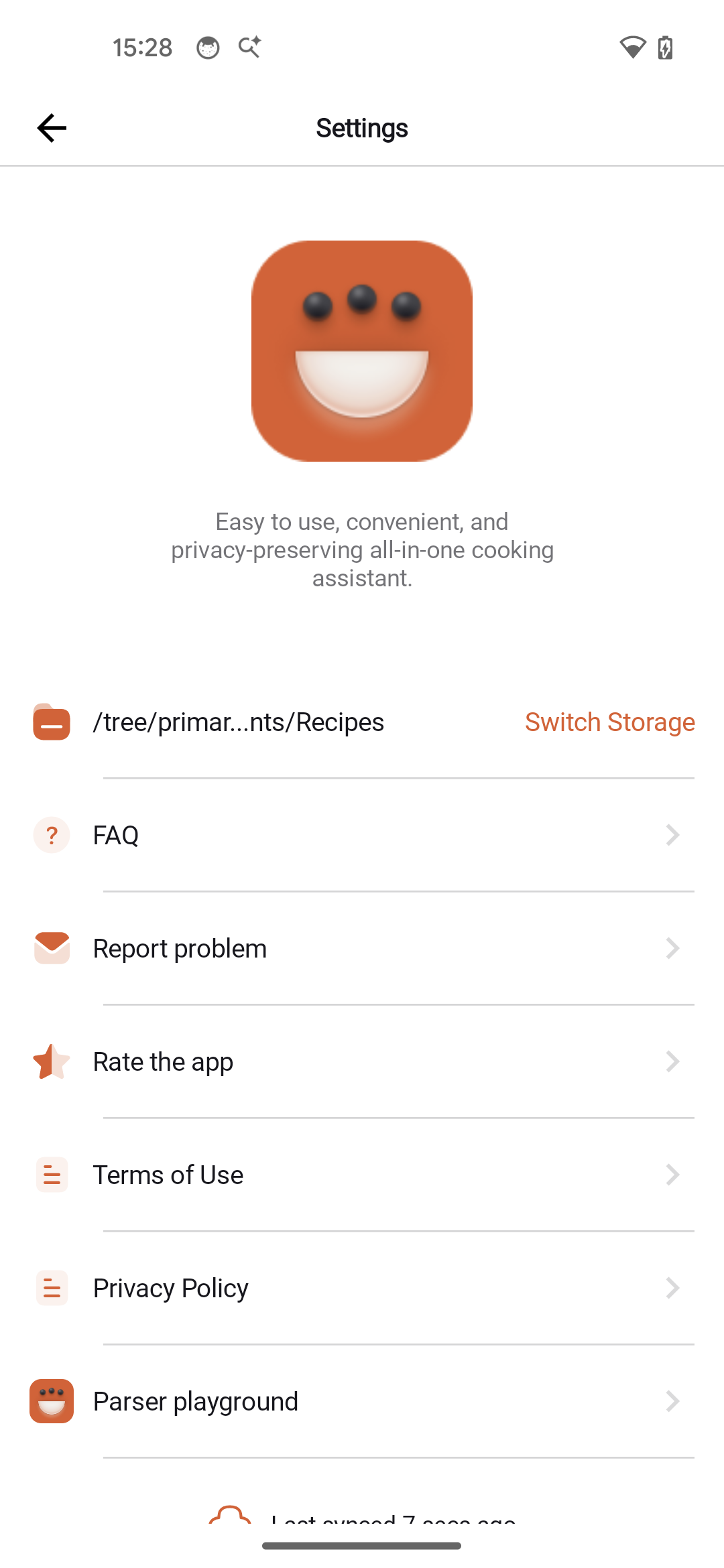
Switch Storage Mode
Change between CookCloud and local folder storage. Note that switching requires signing out first.
Help & Support
Access help documentation, FAQ, and contact support directly from settings:
- FAQ - Links to frequently asked questions
- Contact Us - Send feedback or report issues
- Report a Problem - Submit bug reports
- Rate the App - Leave a review on Google Play
Parser Playground
For advanced users, the Parser Playground lets you test and debug Cooklang recipe syntax directly in the app.
About
View app version, terms of use, and privacy policy.
Having issues? Check out the Troubleshooting page for solutions to common problems.