
TroubleshootingHelp
Solutions to common issues and answers to frequently asked questions.
Recipes Not Syncing
Problem: Your recipes aren't appearing or aren't updating.
Solutions:
- Check your internet connection
- Pull down on the recipe list to force a refresh
- Go to Settings and check the sync status
- Make sure you're signed into the same account on all devices
- Check if there's a sync error message in Settings
Sync Error Messages
"Unable to connect to server"
- Check your internet connection
- Try switching from WiFi to mobile data (or vice versa)
- Wait a few minutes and try again - the server may be temporarily unavailable
"Authentication expired"
- Sign out and sign back in
- Go to Settings → Sign Out, then sign in again
- Use the re-authentication option if prompted
Local Folder Sync Not Working
- Make sure you've granted the app permission to access the folder
- Check that recipes are in the correct folder location
- Verify the files have
.cookextension - Try re-selecting the folder in settings
Login Issues
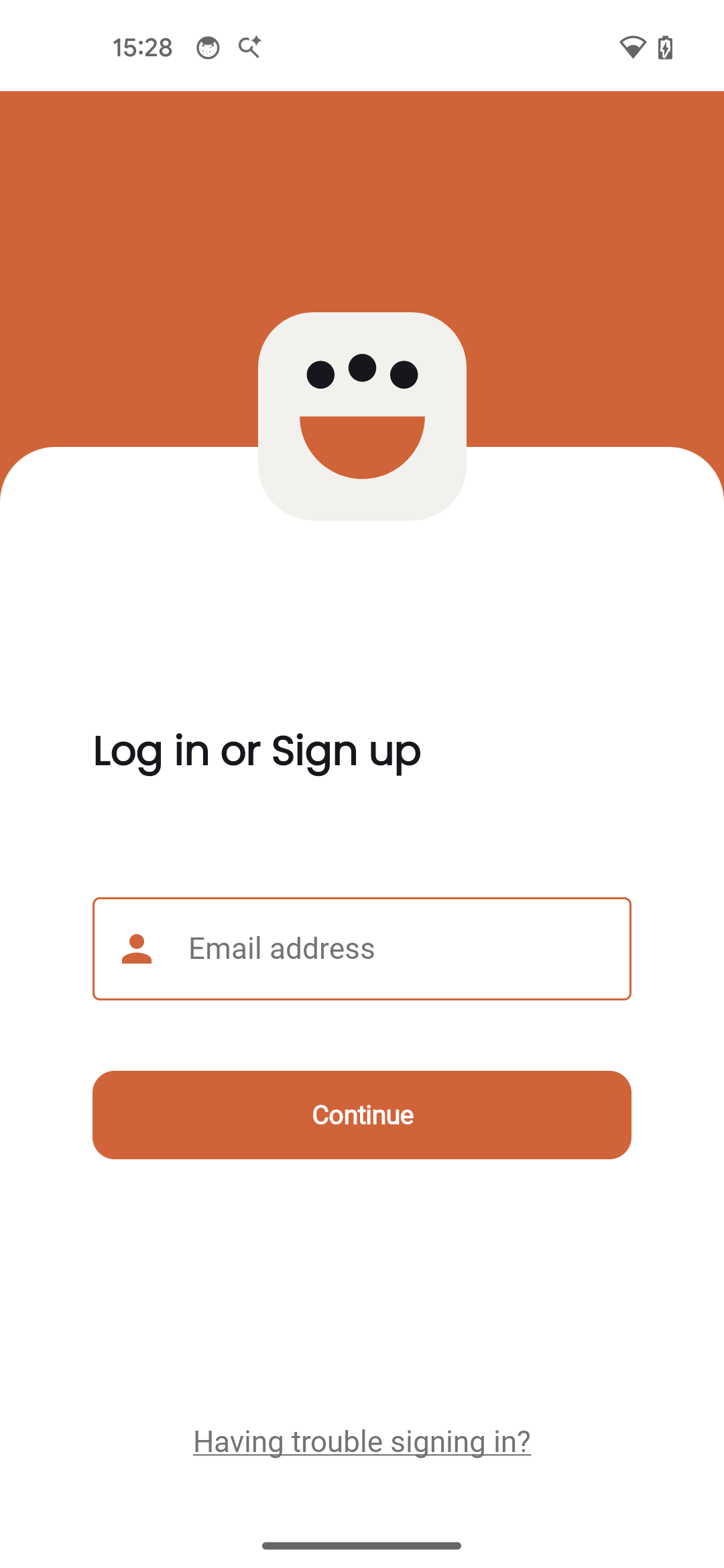
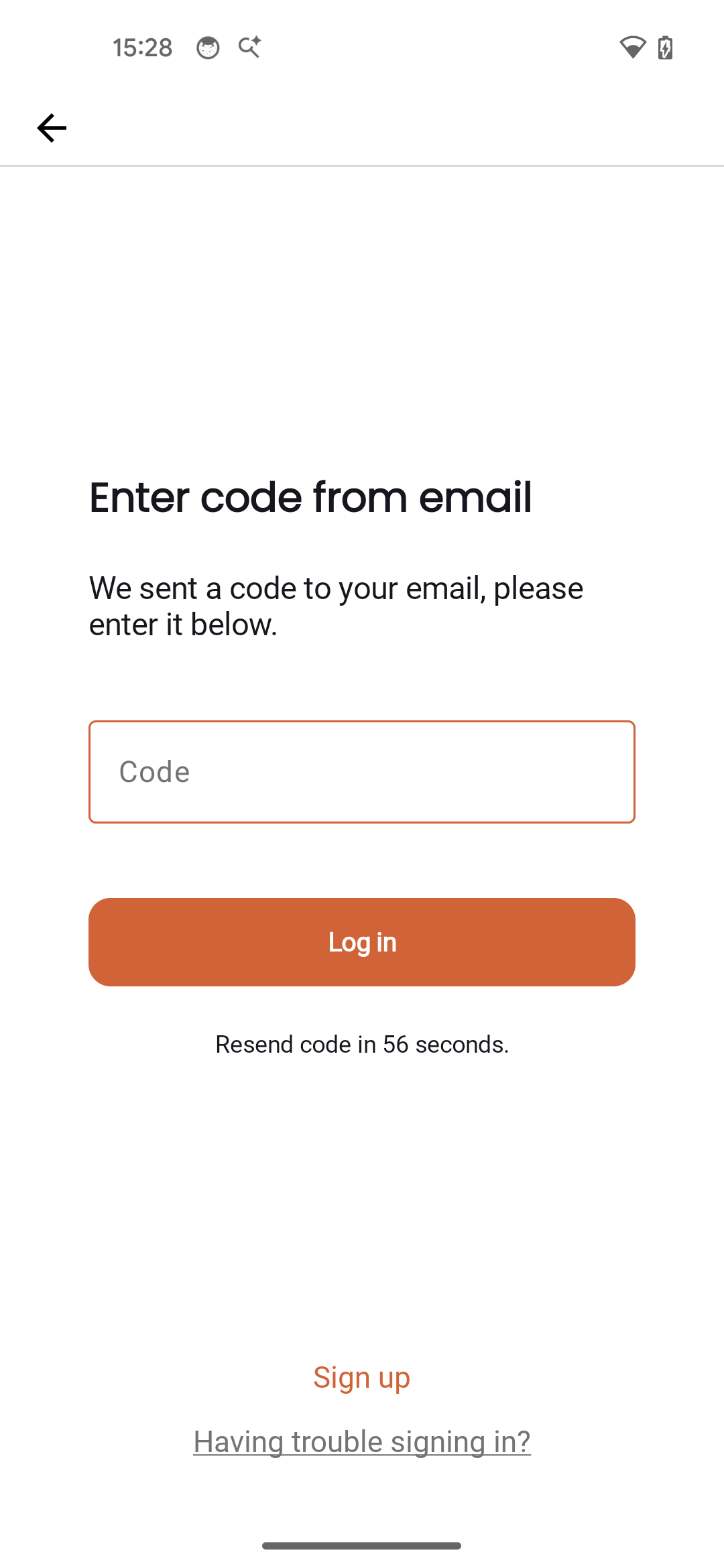
Not Receiving Verification Code
Problem: You're not getting the email with your login code.
Solutions:
- Check your spam/junk folder
- Make sure you entered the correct email address
- Wait a few minutes - emails can sometimes be delayed
- Tap "Resend Code" to request a new one (wait for the cooldown)
- Try a different email address
Code Not Working
Problem: The verification code is rejected.
Solutions:
- Make sure you're using the most recent code (check for newer emails)
- Codes expire after 10 minutes - request a new one if needed
- Type the code carefully - it may be case-sensitive
- Don't include spaces in the code
Signed Out Unexpectedly
If you're signed out unexpectedly, it may be due to a security update or token expiration. Simply sign in again with your email. Your local data will be preserved.
Recipe Issues
Recipe Not Displaying Correctly
Problem: A recipe looks wrong or is missing information.
Solutions:
- Check the Cooklang syntax in the source file
- Make sure ingredients are formatted correctly:
@ingredient{amount%unit} - Verify cookware uses:
#cookware{} - Check for missing or extra brackets
- Use the Parser Playground in Settings to test your recipe syntax
Recipe File Not Recognized
Problem: Your recipe doesn't appear in the app.
Solutions:
- Ensure the file has a
.cookextension - Check the file is in your recipes folder
- Verify the file isn't hidden (doesn't start with a dot)
- Try renaming the file to remove special characters
- Pull to refresh to trigger a new sync
Missing Images
Recipe images should be in the same folder as the recipe file and named identically (except for the extension). For example, pasta.cook should have pasta.jpg or pasta.png.
Parser Playground
Use the Parser Playground feature (found in Settings → Advanced) to test and debug your recipe syntax. This helps identify formatting issues before syncing.
Timer Issues
Timer Notifications Not Working
Problem: You don't receive alerts when timers complete.
Solutions:
- Check that notifications are enabled for Cook in Android Settings → Apps → Cook → Notifications
- Make sure "Do Not Disturb" mode is not enabled
- Verify the device volume is up (for sound alerts)
- Grant the app permission for alarms and reminders (Settings → Apps → Cook → Alarms & reminders)
- Restart the app if timers seem frozen
Timer Stops When App Closes
Timers should continue running in the background. If they're stopping:
- Disable battery optimization for the Cook app
- Go to Settings → Apps → Cook → Battery → Unrestricted
- Check that your device isn't aggressively killing background apps
- Some manufacturers (Samsung, Xiaomi, Huawei) have aggressive battery saving - check their specific settings
- Avoid force-stopping the app while timers are running
Note: Some Android devices have aggressive battery optimization that may affect timer reliability. If timers aren't working correctly, check your device's battery settings and add Cook to the list of unrestricted apps.
Timer Sound Not Playing
- Check that your device is not in silent mode
- Verify the media/notification volume is turned up
- Try restarting the app
Tip: If timer notifications aren't working, go to your device's Settings > Apps > Cook > Notifications and make sure notifications are set to Default importance, not silenced.
Frequently Asked Questions
General Questions
Is the app free?
Yes, the Cook Android app is free to download and use. Basic features are available to everyone. Some advanced features may require a CookCloud subscription.
What is Cooklang?
Cooklang is a simple, human-readable format for writing recipes. It uses special symbols like @ for ingredients, # for cookware, and ~ for timers. Learn more at cooklang.org.
Can I use the app offline?
Yes! Once your recipes are synced, they're stored locally on your device. You can browse, cook, and use timers without an internet connection. Sync requires connectivity.
How do I export my recipes?
Your recipes are stored as plain text .cook files. If using local folder sync, access them directly with a file manager. With CookCloud, export through the desktop app or web interface.
Sync Questions
Which sync method should I use?
CookCloud is recommended for most users - it's easy to set up and works across all platforms. Use Local Folder if you want to manage files manually or keep recipes on-device only.
Can I switch sync methods?
Yes, but you'll need to sign out first. Go to Settings → Sign Out, then relaunch the app and choose a different sync method.
How often do recipes sync?
Recipes sync automatically when the app launches and periodically (every 15 minutes) while you're using it. You can also manually sync by pulling down on the recipe list.
Recipe Questions
How do I create new recipes?
The Android app is primarily for viewing recipes. Create and edit recipes using the desktop app, CookBot, or any text editor. Save them with a .cook extension.
Can I edit recipes on my Android device?
Direct editing isn't available in the Android app. To make changes, edit the .cook file on your computer or through a file manager app (if using local folder sync).
What file formats are supported?
The app only supports .cook files (Cooklang format). Other recipe formats need to be converted first.
Shopping List Questions
How are aisles determined?
Aisles are configured via a config/aisle.conf file in your recipes folder. See the Cooklang shopping documentation for configuration examples.
Does the shopping list sync across devices?
The shopping list is currently stored locally on your device and doesn't sync across devices. This is to prevent conflicts during shared shopping trips.
Contact Support
Can't find the answer you're looking for? Contact us directly.
In-App Support
The easiest way to reach us is through the app:
- Go to Settings
- Tap "Contact Us"
- Fill in your email and describe your issue
- Tap Send
Email Support
You can also email us directly at [email protected]
Report Issues on GitHub
Found a bug? Report it on GitHub.
When contacting support, please include:
- Your device model and Android version
- App version (found in Settings → About)
- A description of the problem
- Steps to reproduce the issue
Report a Problem
Use the "Report a Problem" option in Settings to submit bug reports with additional diagnostic information.
Feature Requests
Have an idea for improving the app? We'd love to hear it! Use the Contact Us form to share your suggestions.
Rate the App
If you enjoy using Cook, please consider leaving a review on Google Play. It helps other users discover the app and motivates us to keep improving!